

Introduction
The testbed lets you take any call — whether it’s a historical call from call logs or a test chat from the pathway editor — isolate a specific node interaction, edit the prompt, and run it multiple times to see how the output varies. When you’re satisfied with the behavior, you can publish it as a Standard — a regression test that catches behavior changes when the prompt is modified later. For a video walkthrough of this feature, please watch here.Test Types
The testbed supports three test types, each targeting a different part of a node’s behavior:- Dialogue — test the node’s dialogue prompt. Use this when you’re changing how the agent responds and want to verify the new prompt works.
- Loop condition — test whether the node’s loop condition fires correctly. Use this when adjusting a condition and want to make sure it still triggers (or doesn’t) as expected.
- Variable extraction — test whether variables extract correctly. Use this when refining extraction descriptions or adding new variables.
Opening the Testbed
From Call Logs
The fastest path into the testbed is from the transcript in the call detail view in Call Logs.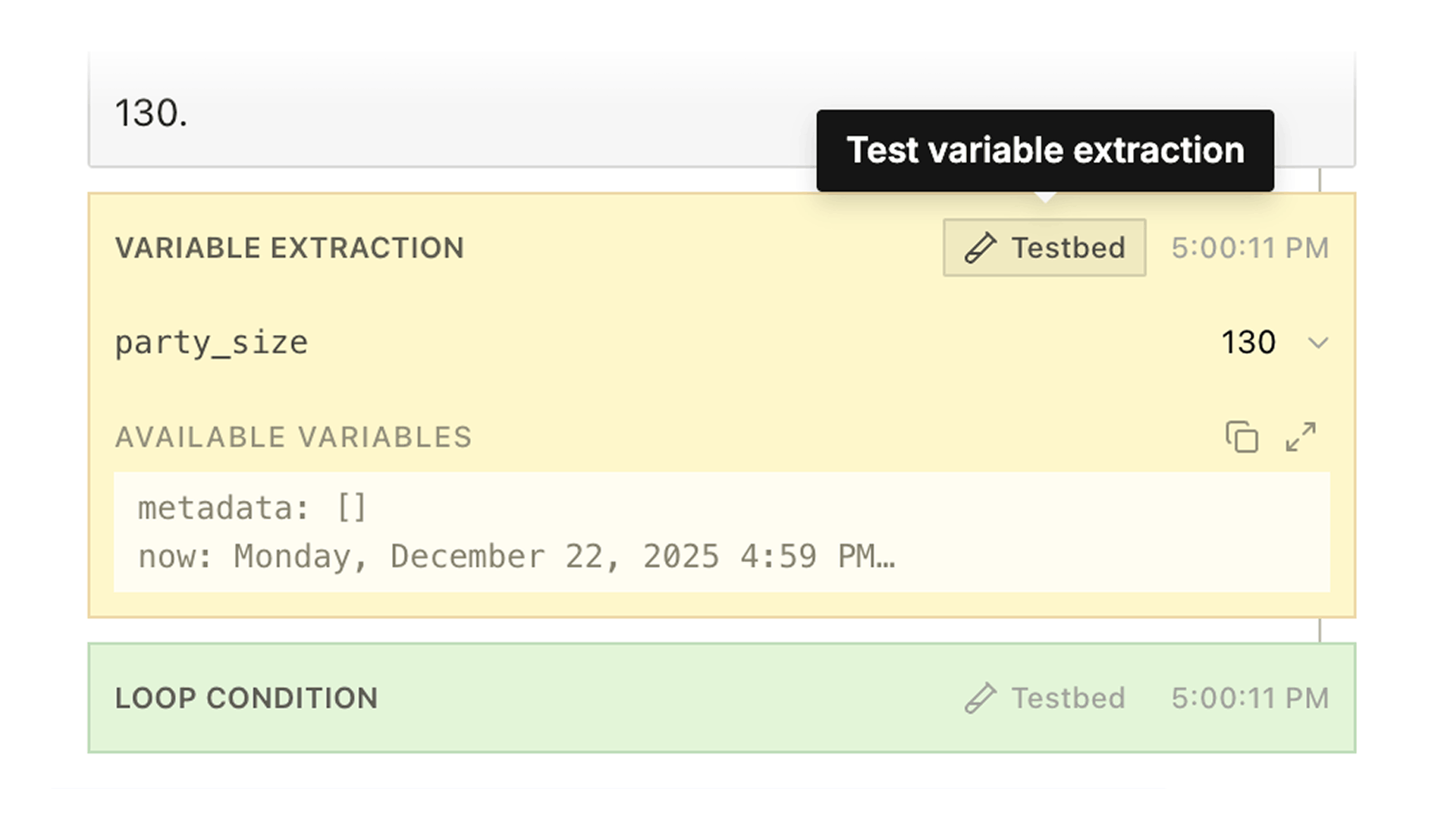
From the Pathway Editor
The testbed is also accessible from the pathway editor’s testing panel. When you run simulations in the Test panel, the resulting call logs include testbed buttons just like any other pathway call — so you can go from testing a pathway to iterating on a specific node’s prompt in one click. See Pathways — Testing for that workflow.The Testbed
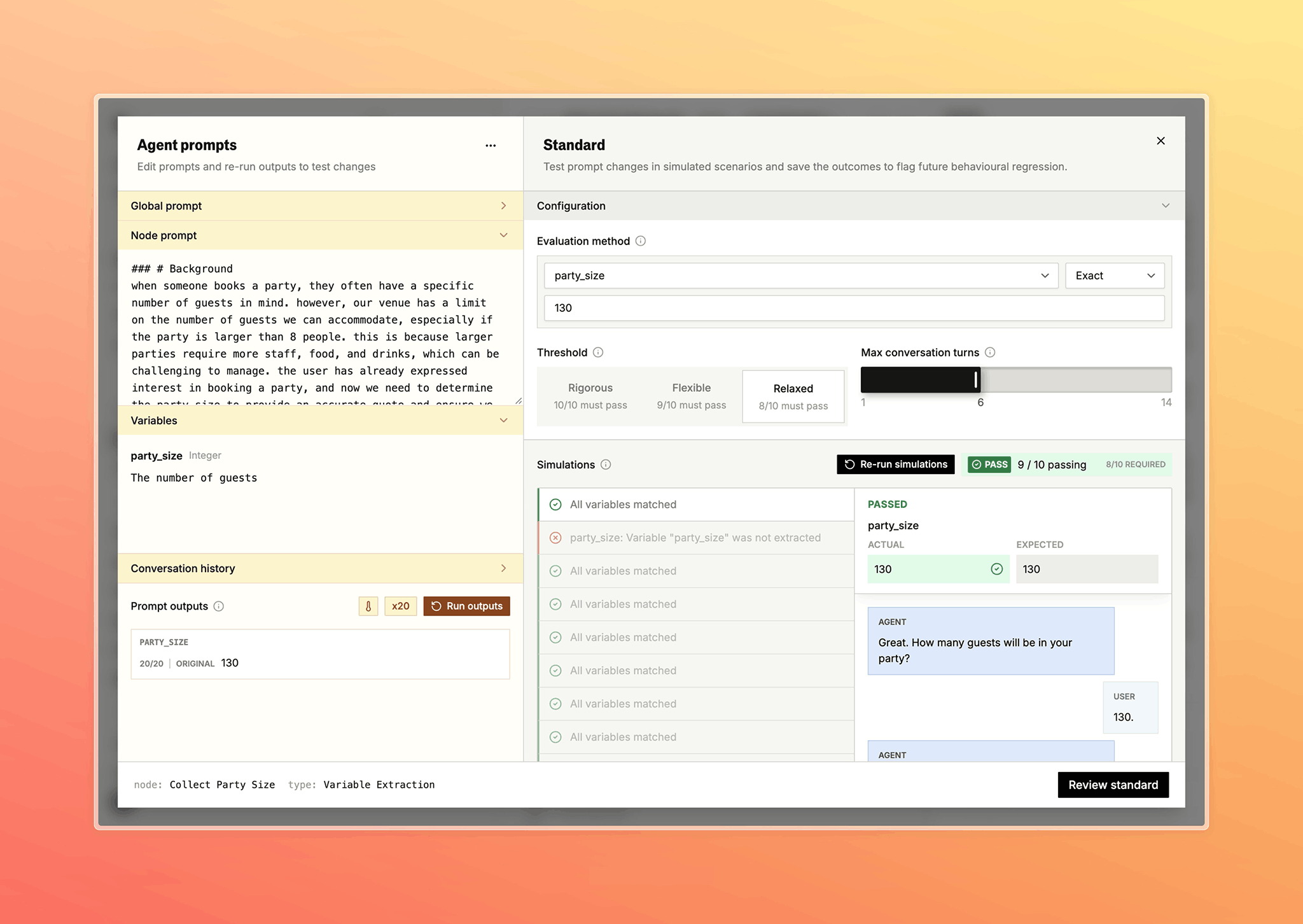
Editor
The left side is where you edit and run: Global prompt — the pathway’s global prompt. Node prompt — the prompt for this node, with variable references like{{variable_name}} highlighted.
Loop condition or variable extraction fields — shown based on the test type.
Conversation history — the real call transcript that seeds the simulation.
Prompt outputs — results after running, with a pass count and sample outputs.
Raw toggle — switch the editor to Raw to see the complete recorded model input for the selected turn, including the system prompt and the full conversation history. Edit anything in Raw and your changes are sent verbatim to the model when you rerun the turn. Toggle back to Prompt to return to the structured editor.
Standards Configuration
The right side configures the simulation and evaluation criteria — the simulation prompt, success definition, conversation length, and pass threshold. These are auto-generated from the call context. For details on how evaluation works, see Standards. Before you can publish, all existing standards on the node must pass with your changes. This ensures your prompt edits don’t break previously validated behavior.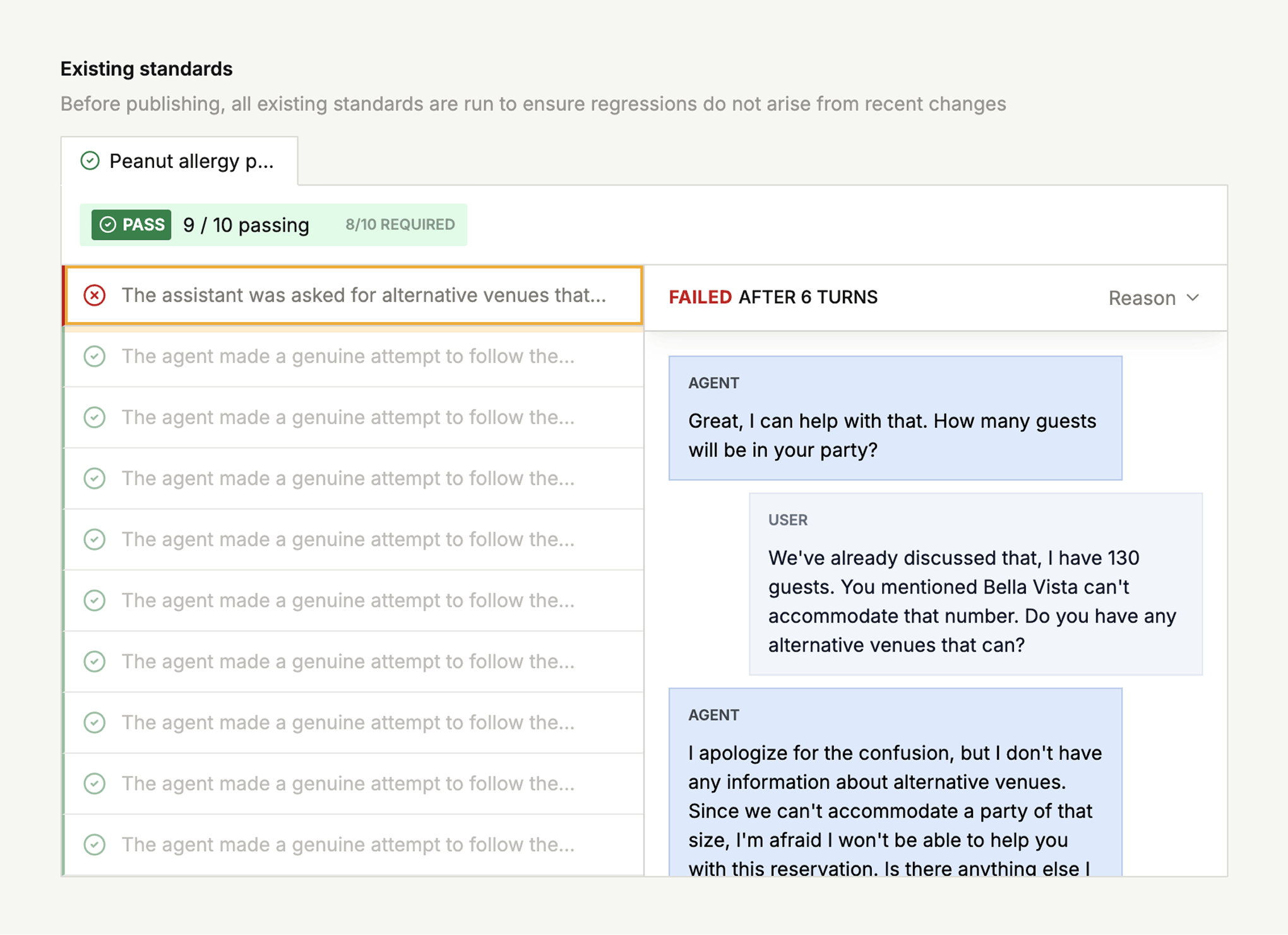
Review and Publish
Switch to the review view to see a diff of your changes alongside batch test results, so you can see the impact before publishing.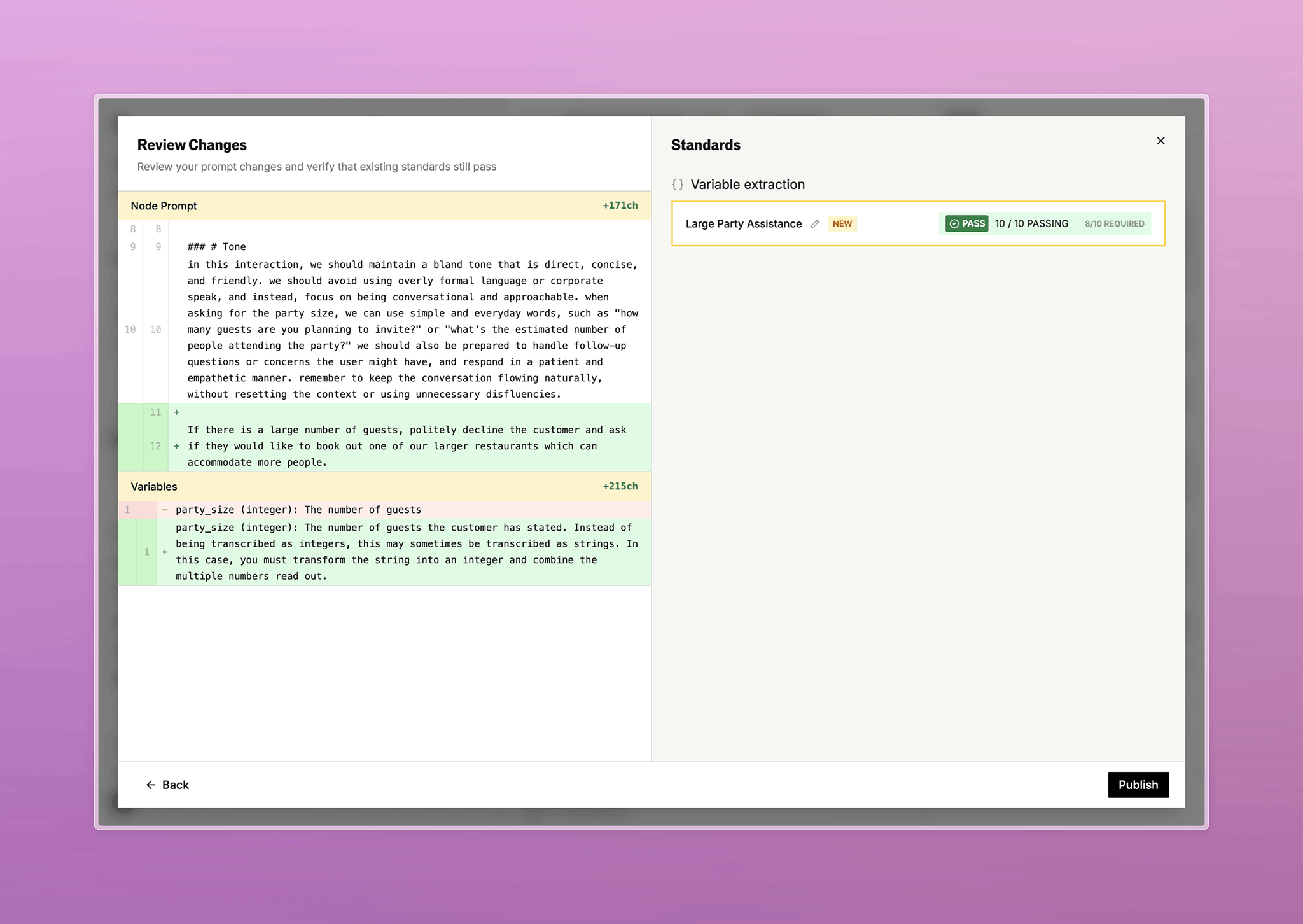
End-to-End Workflow
- Open a pathway call in call logs or a test chat in the pathway editor
- Find the turn you want to test — an agent response, loop condition, or variable extraction
- Switch the conversation view to Detail or Logs
- Hover the transcript bubble or event row and click the testbed button
- Edit the prompt, condition, or extraction
- Run simulations to see how the change performs
- Adjust the threshold and success criteria
- Review the diff and batch results
- Publish to create a standard that prevents future regressions
Related
- Standards — the regression testing framework that the testbed feeds into
- Call Logs — where most testbed workflows originate
- Pathways — Testing — accessing the testbed from the pathway editor
Docs for agents: llms.txt