Connect Cal.com
This tutorial walks through creating a Cal.com booking tool. The same patterns apply to all built-in integrations.Step 1: Connect Cal.com
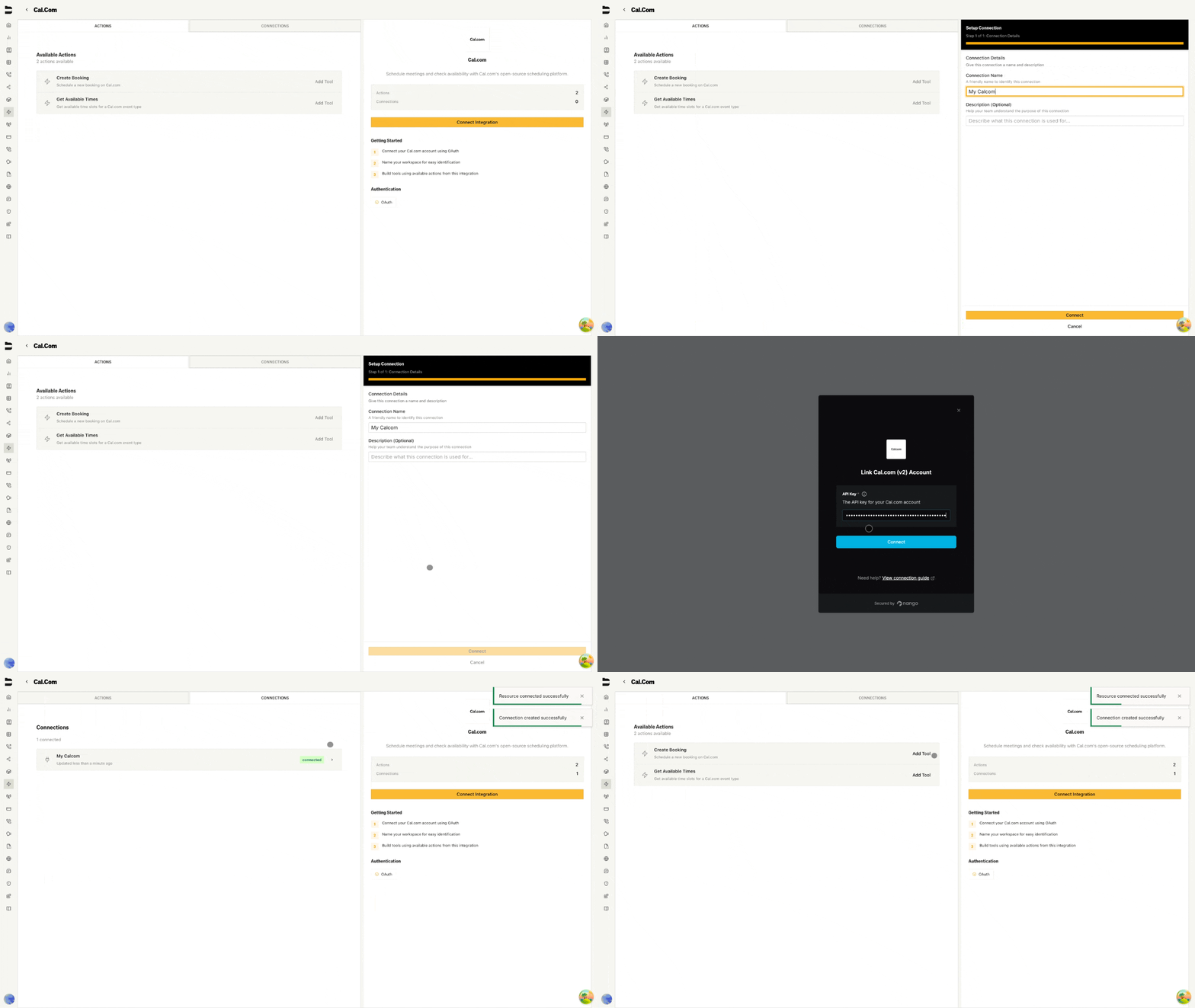
- Go to Integrations tab
- Click Cal.com
- Click Add Connection
- Name it (e.g., “Sales Team Calendar”)
- Click Connect
- Enter your Cal.com API key in the popup
- Click Save
Step 2: Create a Booking Tool
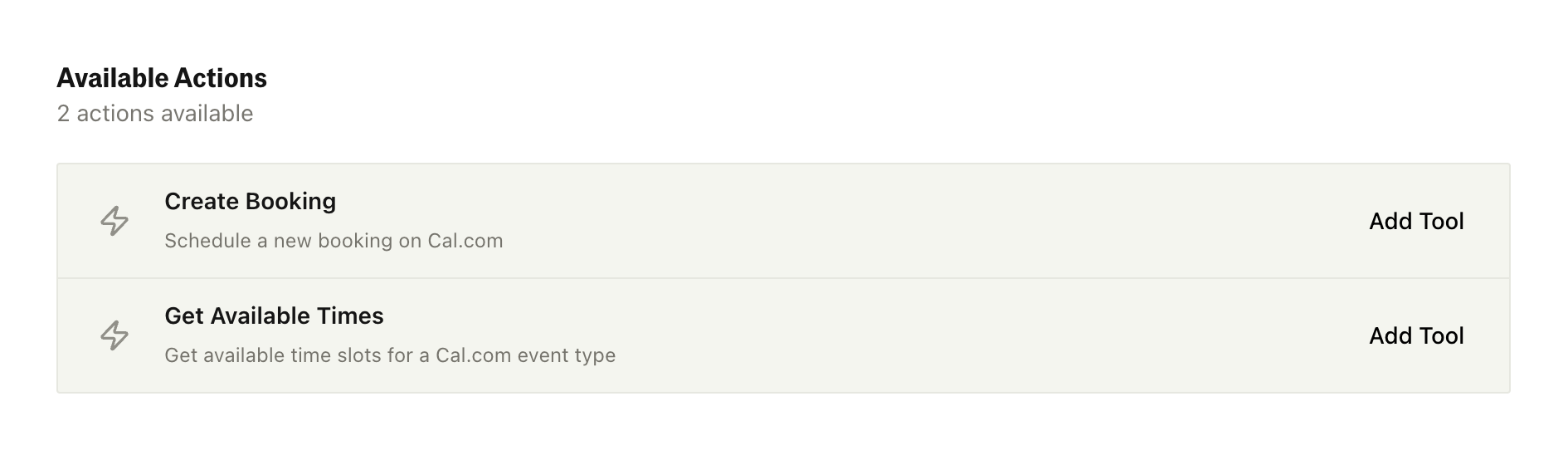
In the Actions panel, click Create Booking to open the Tool Builder.
Step 3: Configure the Tool
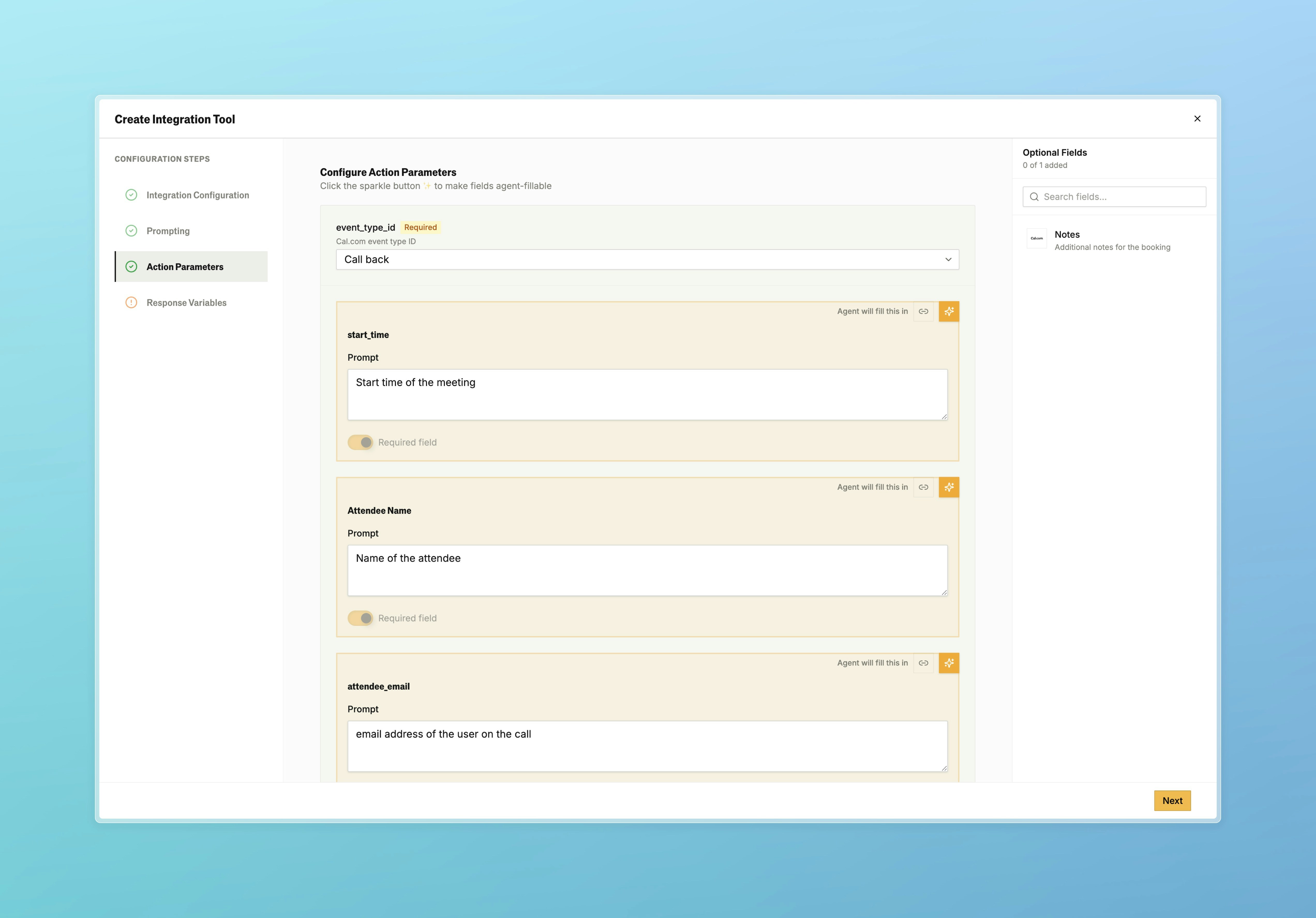
Action Parameters:
Configuring Tool Parameters
All integrations use the same three input modes:Manual Mode
The value is fixed and always the same. When to use:- Cal.com event type for demos
- Default priority or status values
- Account IDs that are always the same
Agent Mode (Click the Sparkle Button)
The AI extracts the value from the conversation. When to use:- Caller’s name, email, or other personal info
- Details about what they’re interested in
- Scheduling preferences from the conversation
- Be specific: “The caller’s work email address” not just “email”
- Mention format if it matters: “Date and time in the format they mentioned”
- Handle missing data: “The company name if mentioned, otherwise leave blank”
Linked Mode (Click the Link Button)
The value comes from a system variable or pathway variable. System Variables (when available):| Variable | Description |
|---|---|
from | The caller’s phone number |
to | The number that was called |
call_id | Unique identifier for this call |
- Automatically include caller’s phone number in a CRM
- Reference the call ID for tracking
- Use variables collected earlier in the pathway
Response Variables
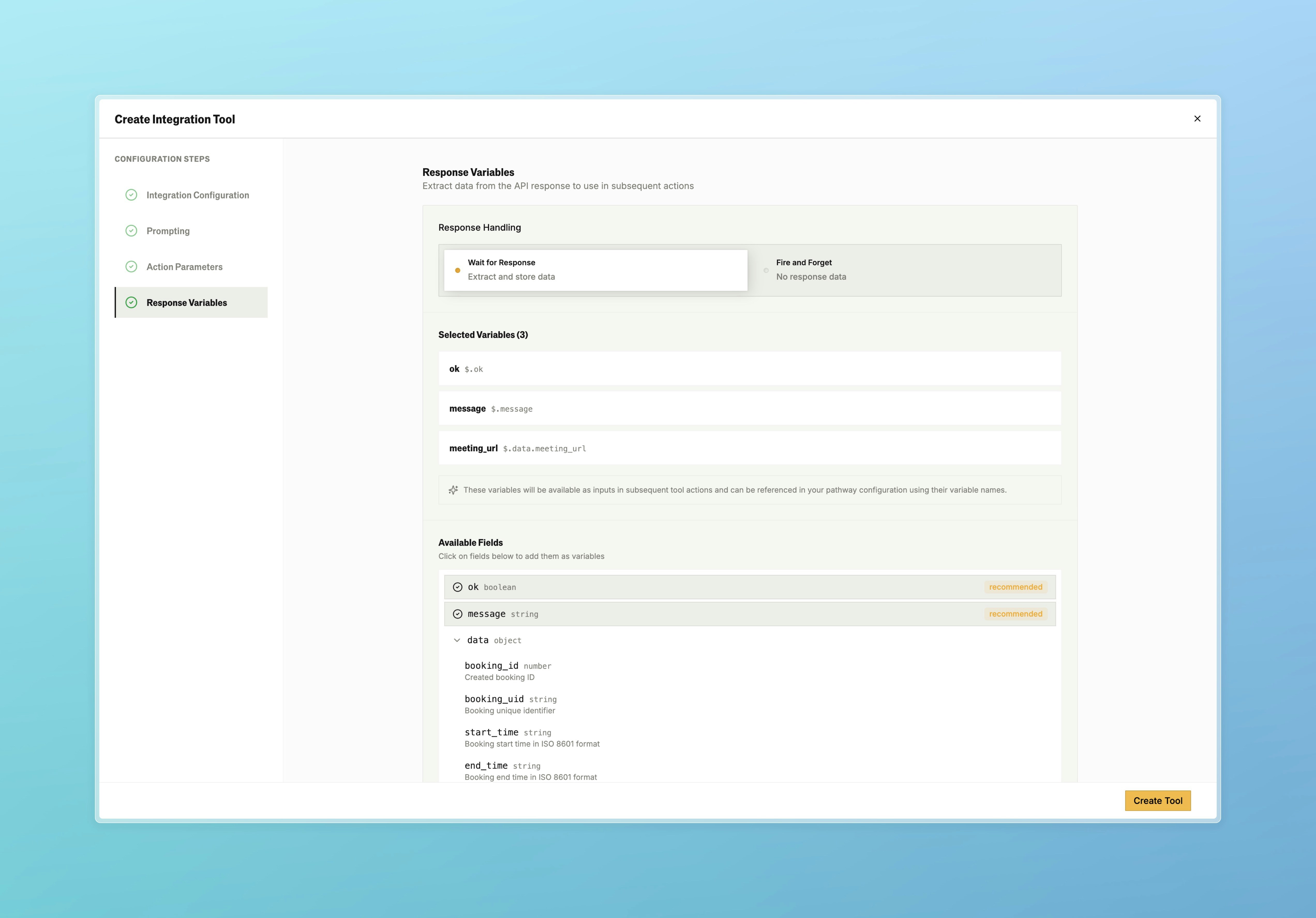
After a tool executes, you can capture data from the response.Default Fields (All Integrations)
Every tool response includes:| Field | Type | Description |
|---|---|---|
ok | boolean | true if successful |
message | string | Status message from the integration |
data | object | Integration-specific response data |
Cal.com Response Fields
Cal.com Schedule Meeting:meeting_url- The booking URLbooking_id- Unique identifier for the bookingbooking_uid- UID for the bookingstatus- Booking statusstart_time- Scheduled start timeend_time- Scheduled end timeattendee_email- The attendee’s emailattendee_name- The attendee’s nameattendee_timezone- The attendee’s timezone
Using Response Data in Pathways
Response Pathways
Route your pathway based on what the tool returned:| Variable | Condition | Value | Go To |
|---|---|---|---|
ok | equals | true | Success Flow |
ok | equals | false | Error Handler |
==,!=- Equals, not equals>,<,>=,<=- Numeric comparisonscontains,!contains- String matchingis null,is not null- Check for presence