

What Are Tools?
When your AI phone agent talks to a caller, it can do more than have a conversation. It can take real actions during the call:- Schedule a meeting on Cal.com when a caller wants to book time
- Create a contact in Salesforce when someone provides their info
- Send a Slack message to notify your team about an interested lead
- Call your own API to check order status or update a database
Tools vs Custom Tools (Legacy)
If you’ve used Bland before, you may have used Custom Tools (now legacy). Here’s how they compare:How Tools Work
Every tool has four sections: 1. Integration Configuration: Which connection and action to use (Salesforce → Create Contact, API → POST, etc.) 2. Prompting: When the AI should use this tool and what it says during execution 3. Action Parameters: The data the tool needs (fields, values, how to get them) 4. Response Variables: What to capture from the result and how to use it You create a connection once, then build multiple tools using that connection. For example: One Salesforce connection could power:- A “Create Contact” tool
- A “Create Lead” tool
- A “Create Opportunity” tool
- A “Check Order Status” tool
- A “Update Customer Record” tool
- A “Submit Support Ticket” tool
The Tools Hub
All tool management happens in the Tools Hub. Four tabs: Tools: Your created tools. Each tool shows its connection and status. Connections: Your authenticated links to services. Integrations: Browse available integrations and create new connections. Analytics: Execution logs, error rates, and performance metrics.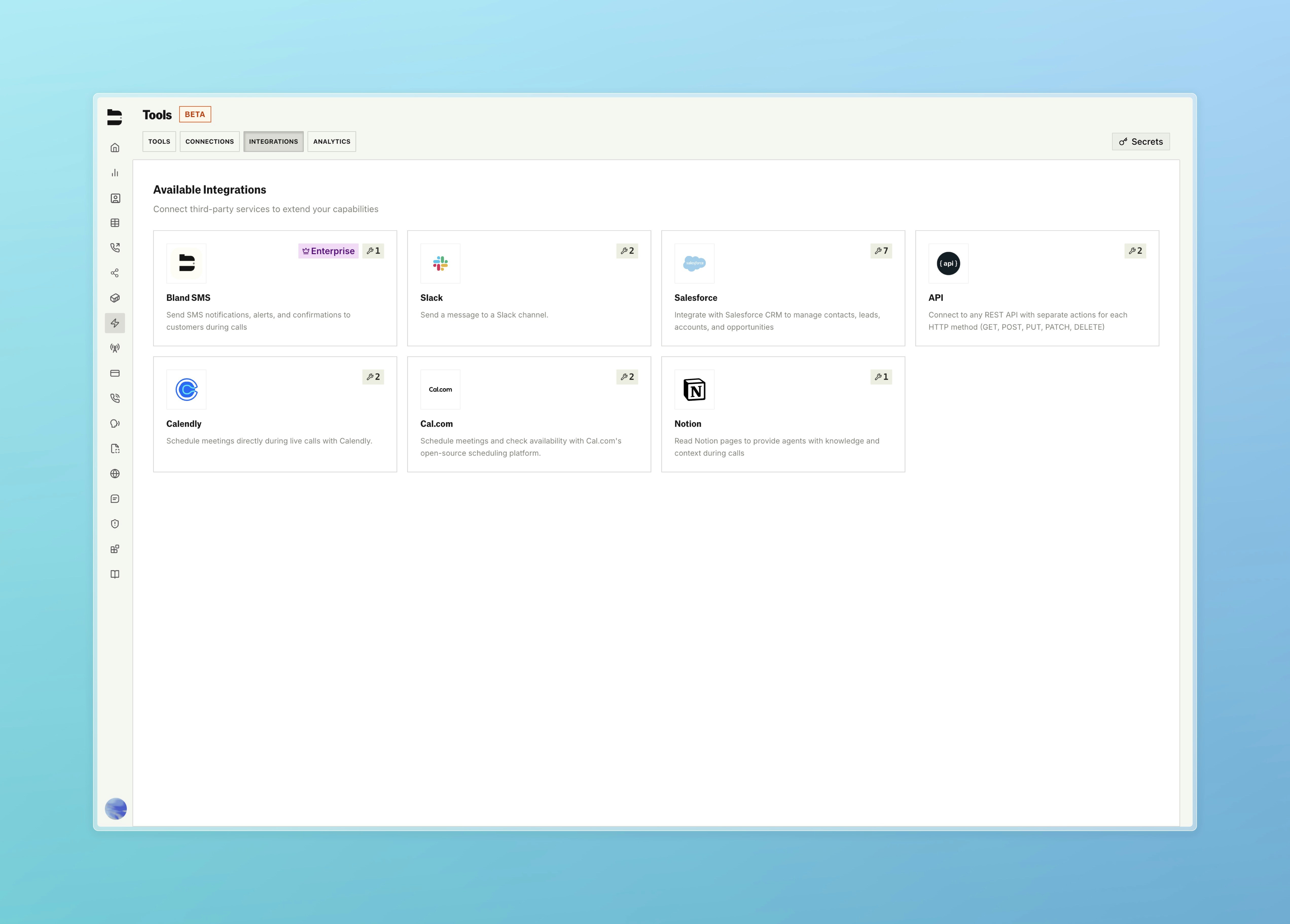
Creating a Tool
Set Up a Connection: Connect to the service your tool will use. For third party integrations, sign in with OAuth. For custom APIs, configure your endpoint and authentication. You only do this once per service. Choose an Action: Each connection offers specific actions. Cal.com has Schedule Meeting and Get Available Times. Salesforce has Create Contact, Create Lead, Create Opportunity. Your API connection has GET and POST to any endpoint. Configure the Tool: The Tool Builder has four sections. Integration Configuration selects your connection and action. Prompting tells the AI when to use the tool and what to say. Action Parameters define what data the tool needs. Response Variables capture data from the result. Add to Pathway: Use the tool in your conversational pathway. Route based on results: success goes one way, errors another. Walkthroughs:- Integration Tools: Cal.com, Salesforce, Slack, and others
- Custom API Integration: Your own endpoints and custom APIs
Tools with Personas
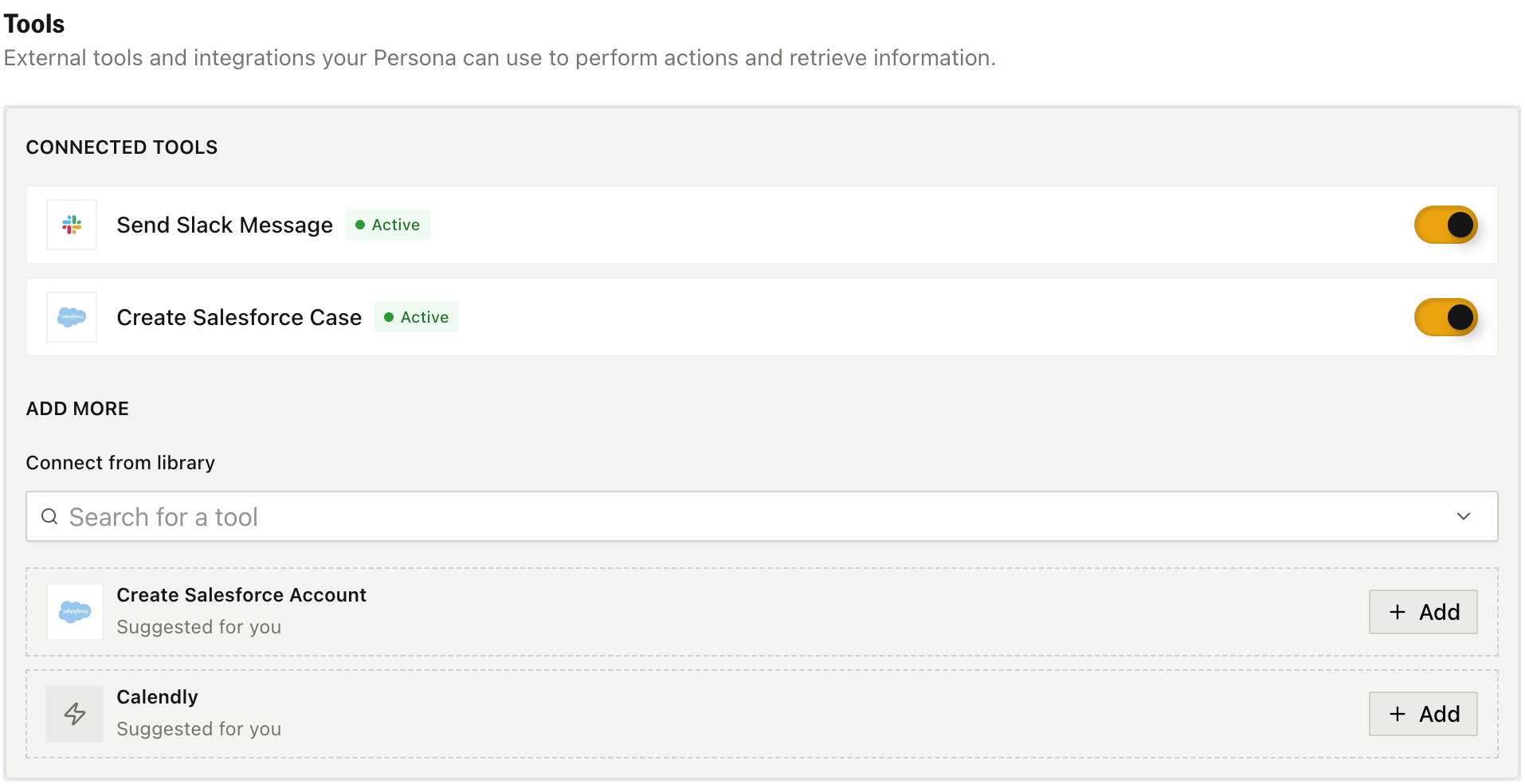
When you add a tool to a Persona, the agent decides when to use it and fills in the parameters automatically.How It Works
- Add your tool to the Persona’s tool list
- The agent reads the tool’s prompt to know when to use it
- When triggered, the agent fills Agent Mode fields from the conversation
- Linked Mode fields use system variables automatically
- Manual Mode fields use the static values you set
Tool Prompts
The tool’s prompt tells the agent when to use it. Be specific: Good prompt:Parameter Modes in Personas
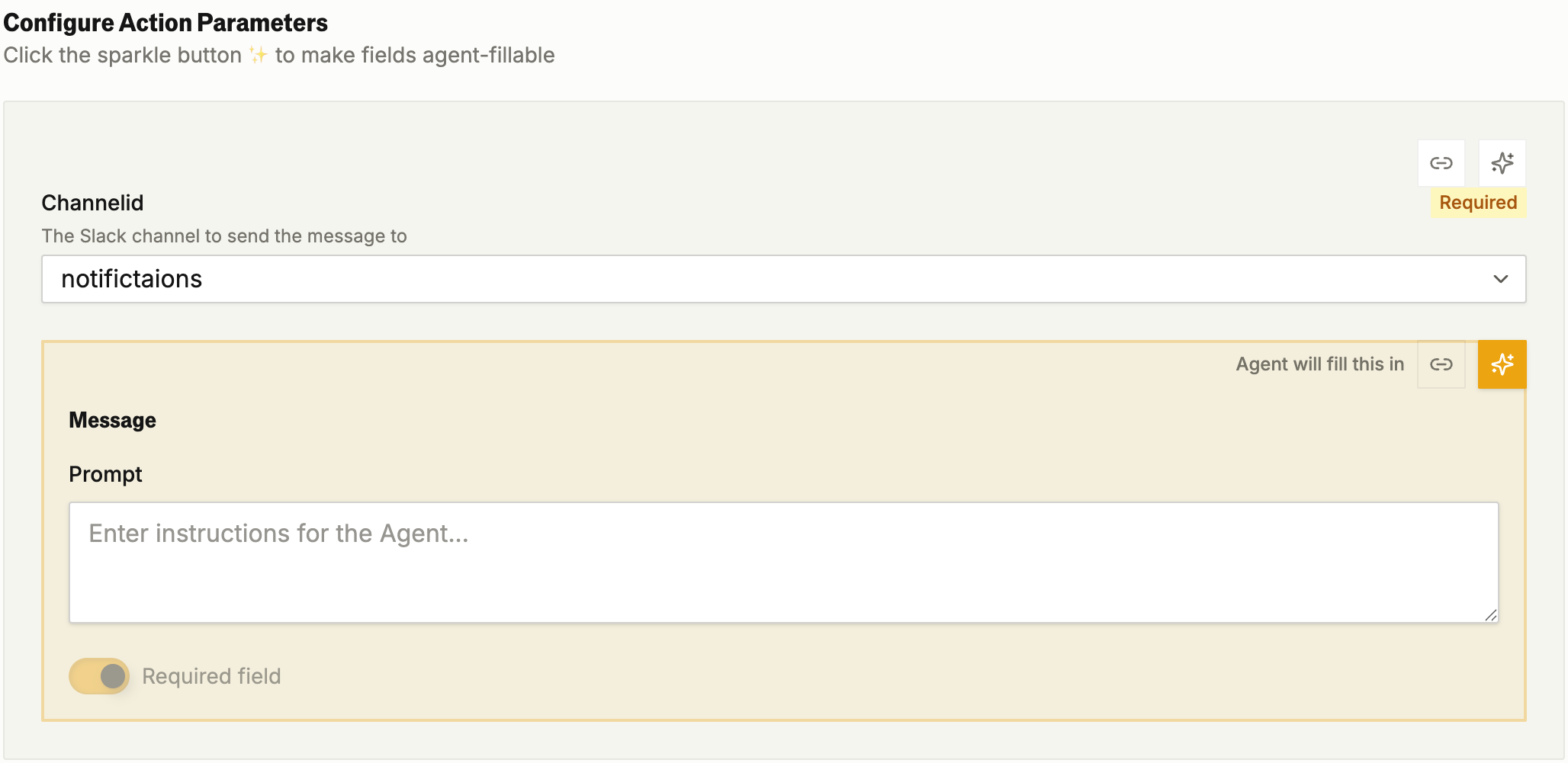
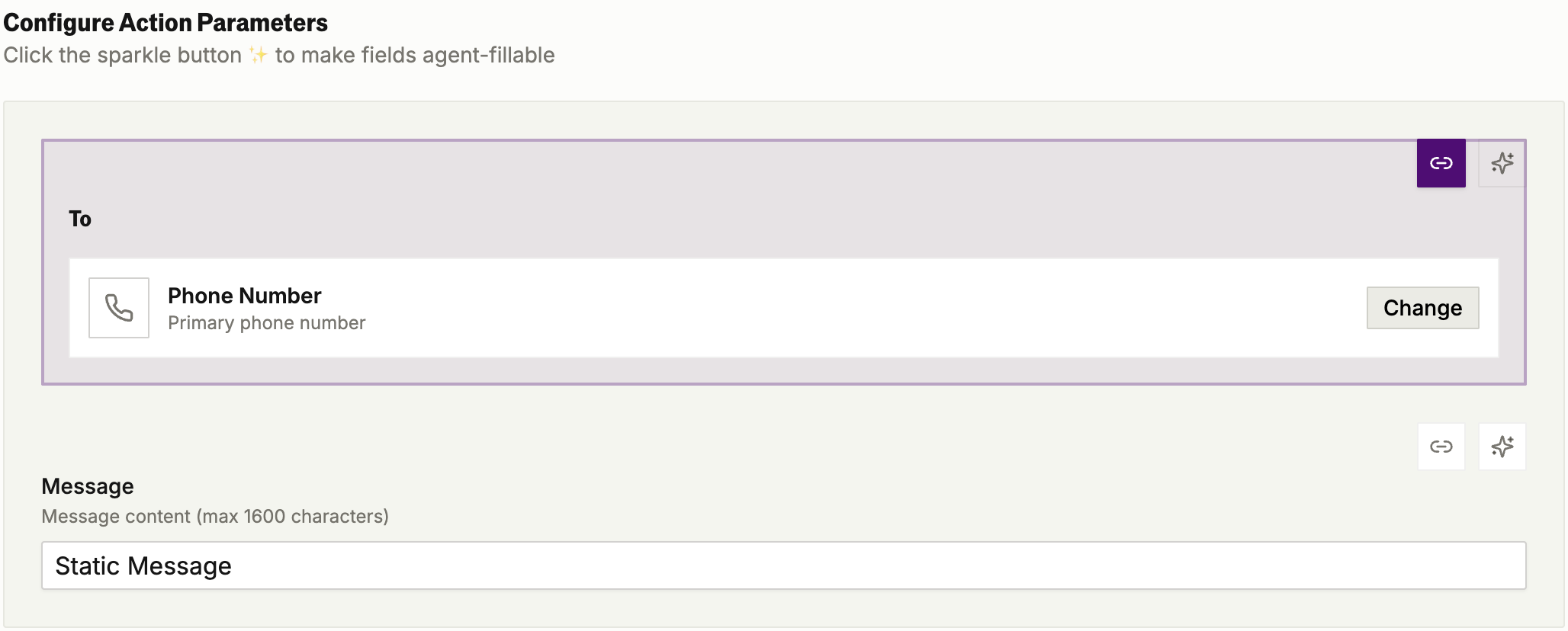
Every tool field needs a value. Where does that value come from? That’s what parameter modes solve. Agent Mode: The field is for the AI agent to fill in based on the call conversation. During the call, the agent listens to what the caller says and extracts the value when the tool is used. This is for information the caller provides that you couldn’t know ahead of time. Use Agent Mode when:- The caller provides their name, email, or phone number
- The caller mentions their preferences or requirements
- The caller describes a problem or request
- Any information that comes from what the caller says
- You already know the value (use Manual Mode instead)
- The system already has the value (use Linked Mode instead)
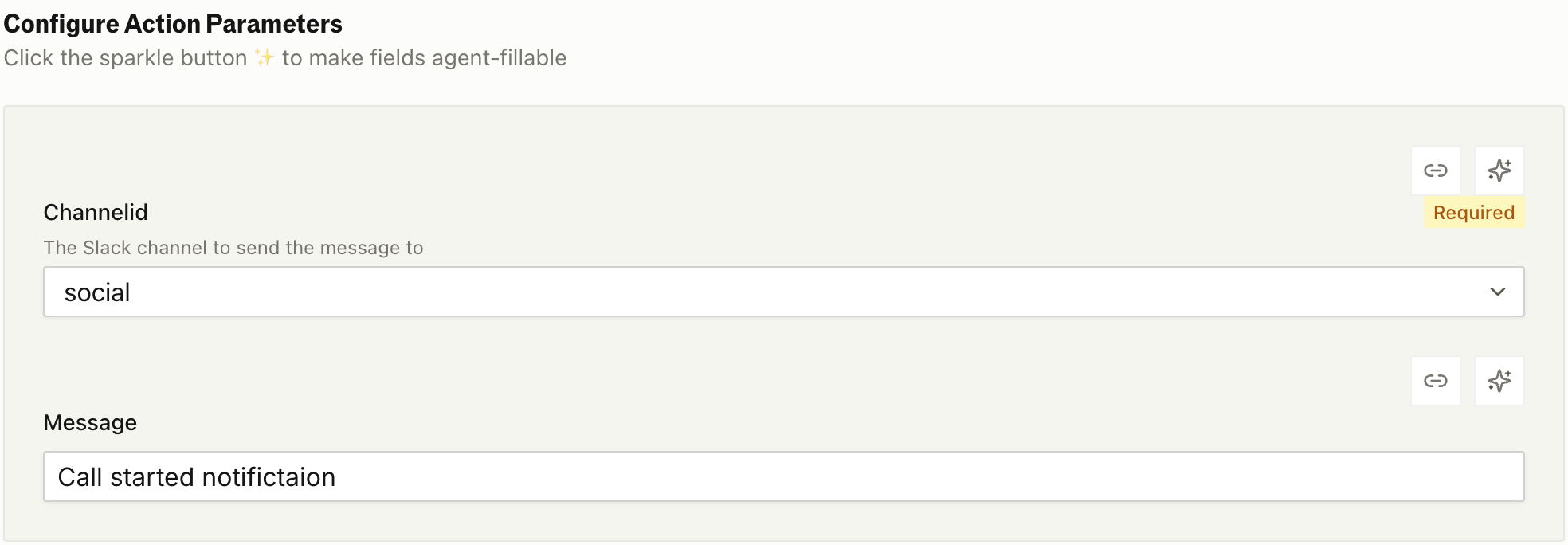
{{from}} is the caller’s phone number, which is already available. {{call_id}} is the unique identifier for this call.
Tools with Pathways
In Pathways, you control when tools run and how parameters are filled. The agent doesn’t fill fields automatically: you link them to pathway variables.How It Works
- Extract variables in earlier nodes using Variable Extraction (caller name, email, etc.)
- Add a Custom Tool node to your pathway
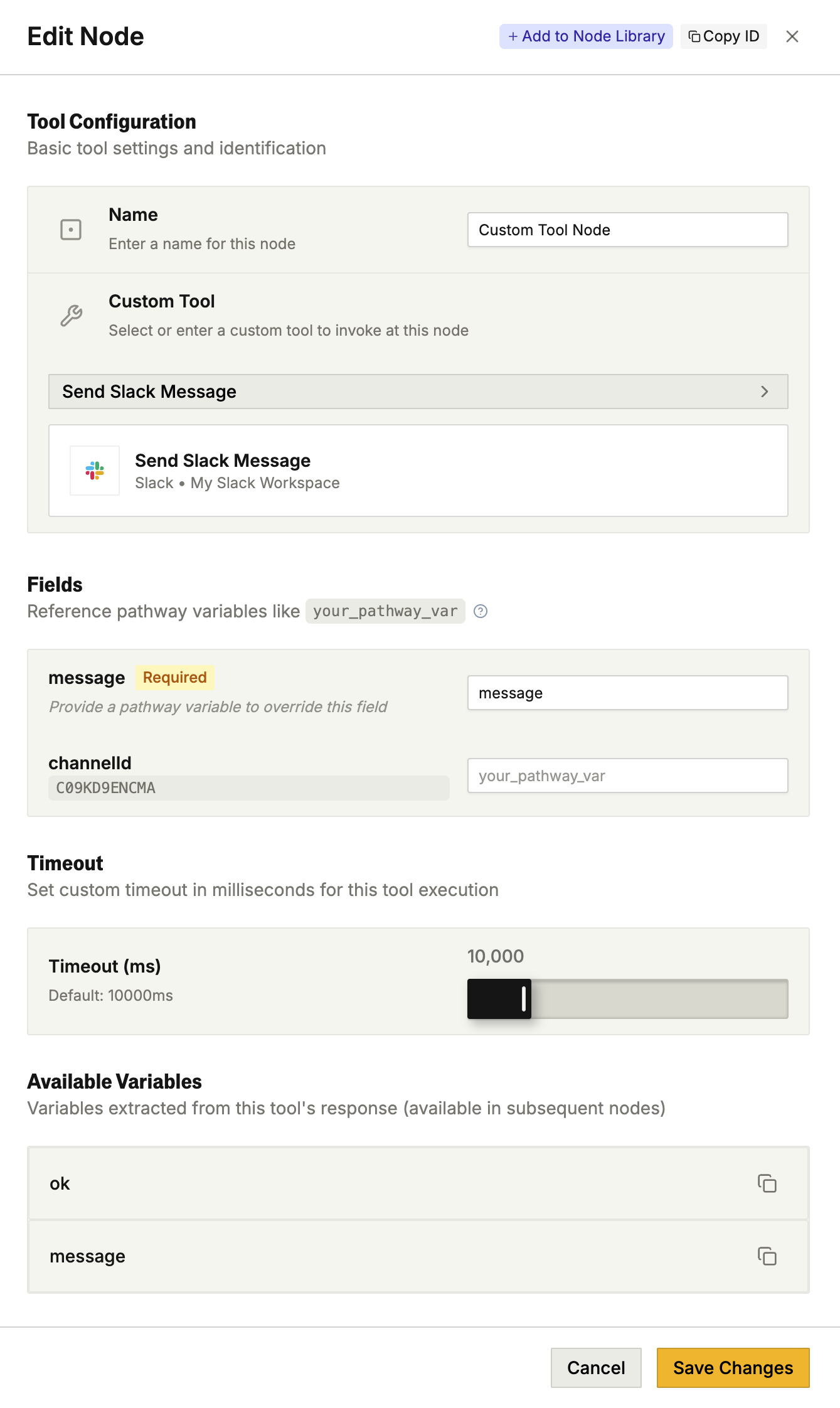
- In the Fields section, select which pathway variables to use for each tool input
- The tool runs when the pathway reaches that node
request_data when the call starts.
Parameter Mapping in Pathways
In Pathways, the tool doesn’t run on its own. You control exactly when it fires and what data it uses. Manual Mode: Same as Personas. Fixed value you set in advance.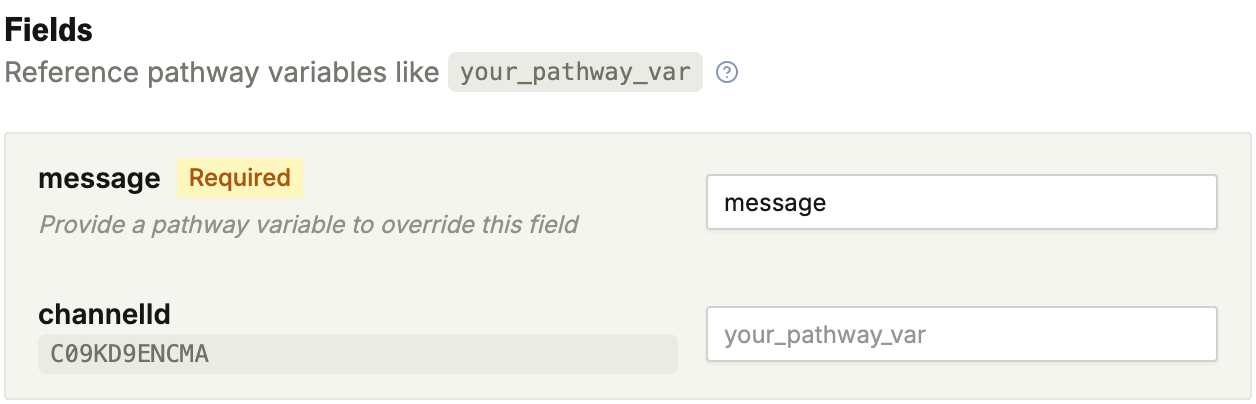
customer_email in a previous node. Now you select it for the email field.
Linked Mode: System variables like the caller’s phone number and call ID are available automatically.
Example
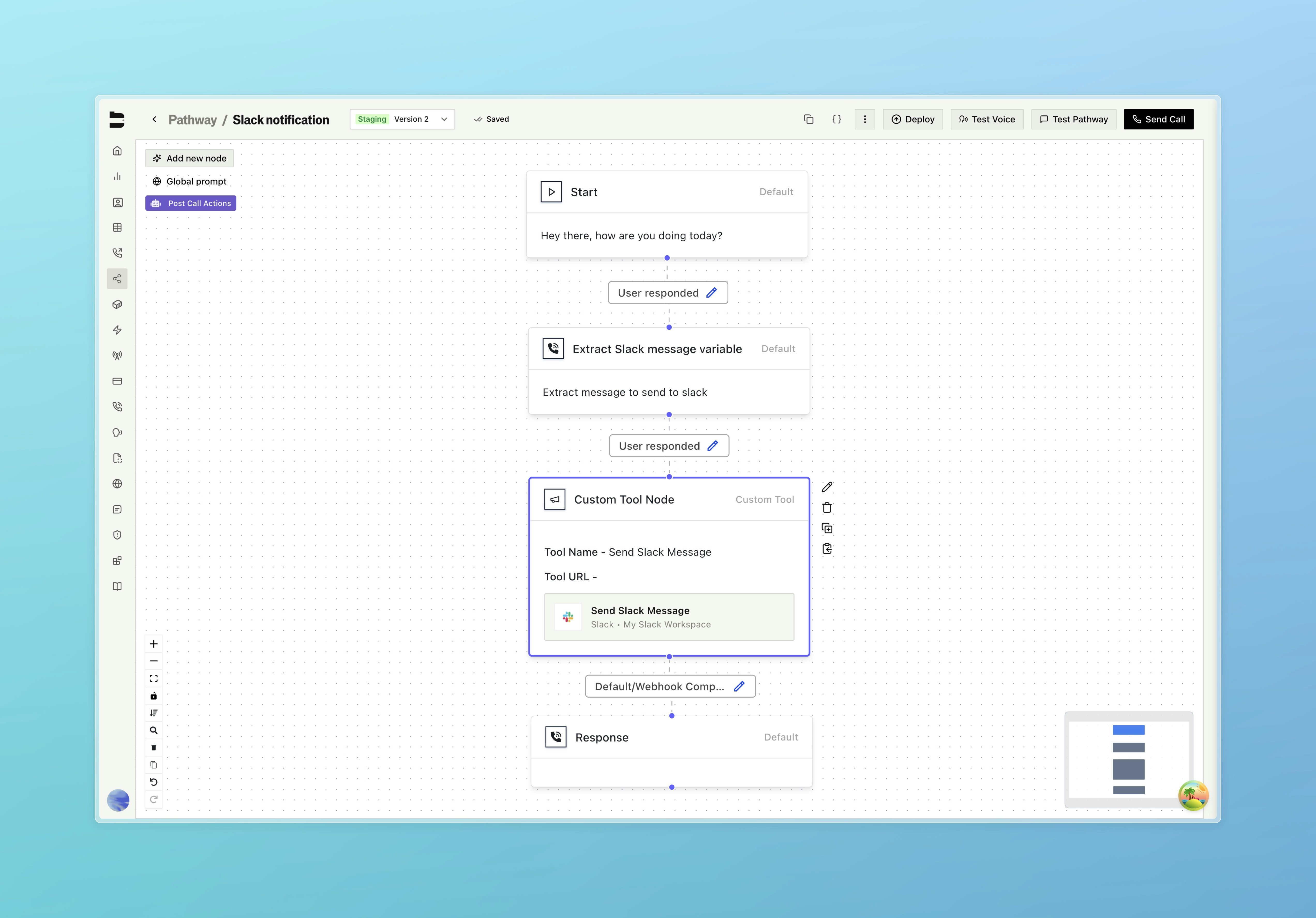
- Earlier node extracts
customer_emailandcustomer_nameusing Variable Extraction - Custom Tool node Fields section:
- email → select
customer_email - name → select
customer_name
- email → select
- Tool executes with those values
Response Routing
Route your pathway based on tool results:
Available conditions:
==, !=, >, <, contains, is null, is not null
Response Variables
When a tool runs, it returns data you can use in your conversation or pass to other tools. Why response variables exist: After booking a meeting, you might want to tell the caller the confirmation number. After creating a contact, you might want to confirm their record was saved. Response variables let you capture this data and use it.Response Modes
Capture Response: The tool waits for a response and captures the data. Use this when you need to check if the request succeeded, get data back (like a confirmation number), or route your pathway based on the result. Fire and Forget: The tool sends the request but doesn’t wait for a response. Use this when you don’t need confirmation, speed is critical, or the action is fire-and-forget (like logging or notifications).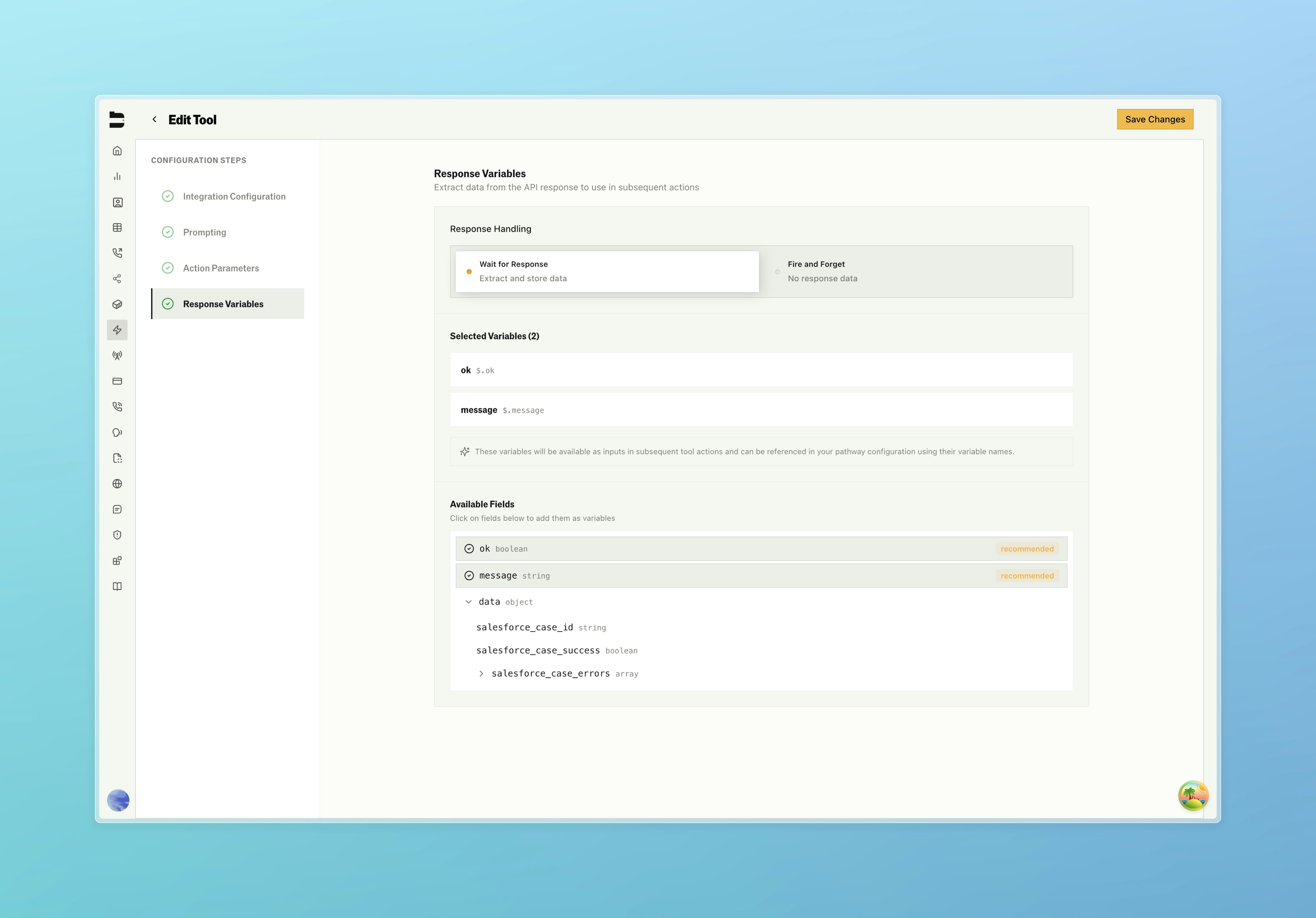
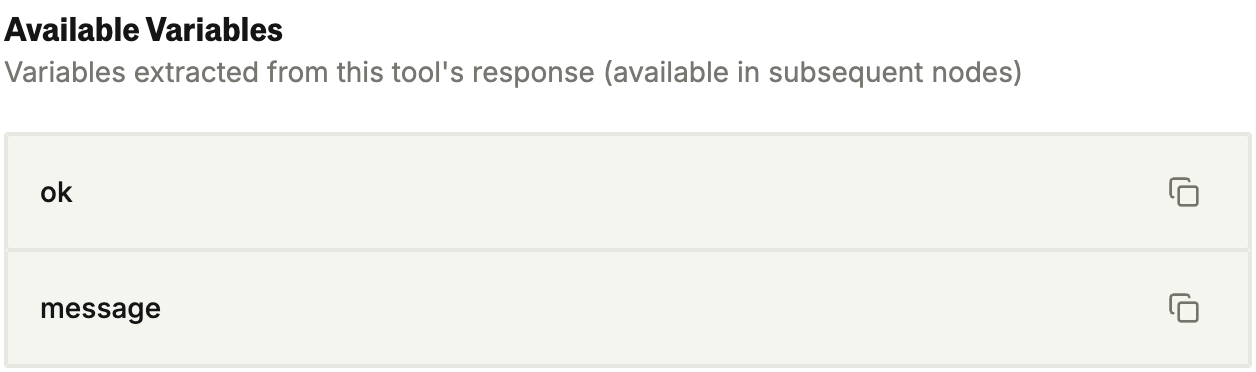
What you get back (Capture Response)
- Whether the tool succeeded or failed
- A status message
- The actual data from the service (contact ID, booking URL, etc.)
- In the Tool Builder, you define which fields to capture
- Use
{{variable_name}}syntax to reference captured data - Route your pathway based on success or failure
Monitoring
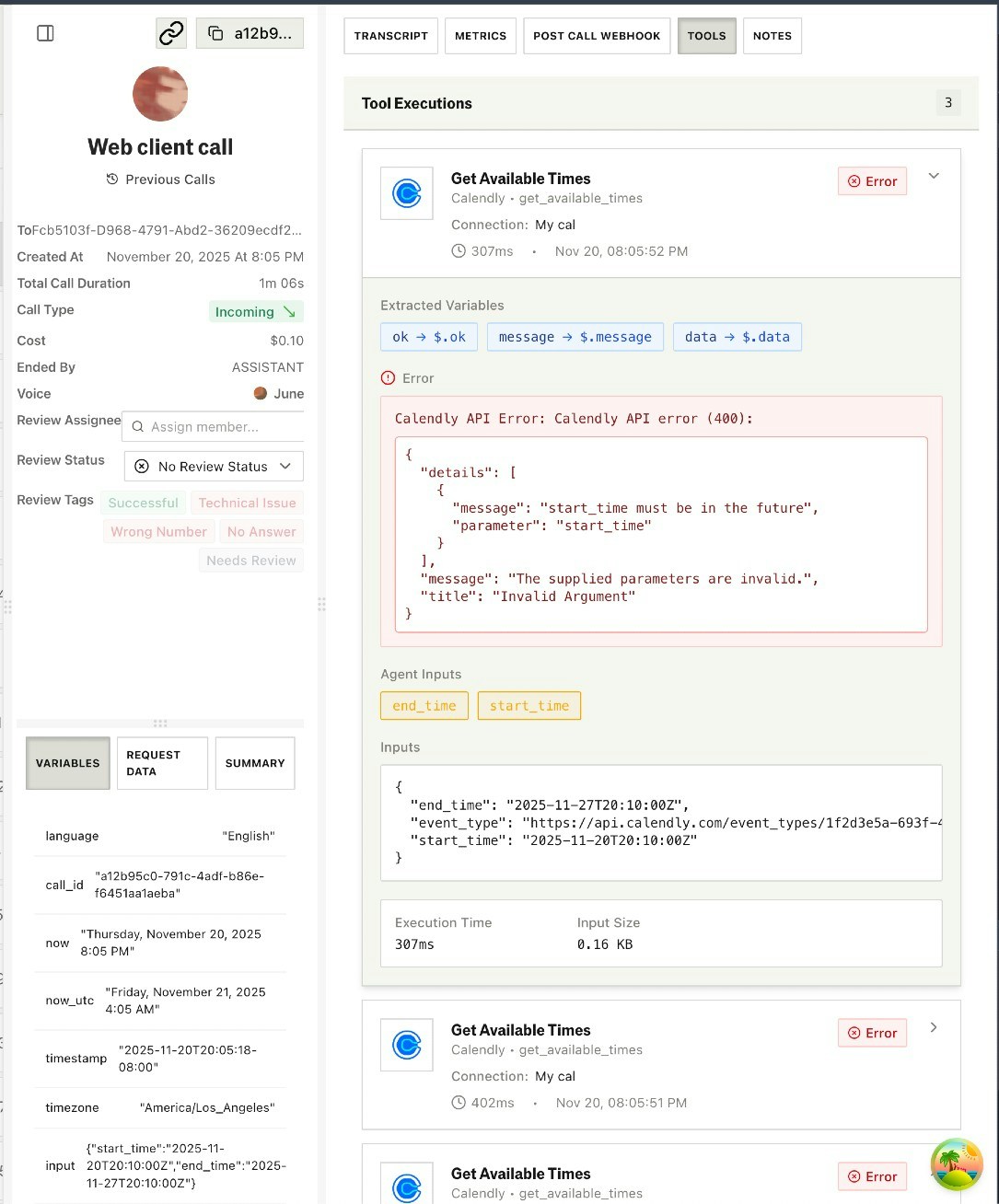
Tools give you full visibility into what’s happening during calls. Analytics Panel: In the Tools Hub, the Analytics tab shows execution logs, error rates, and performance metrics across all your tools.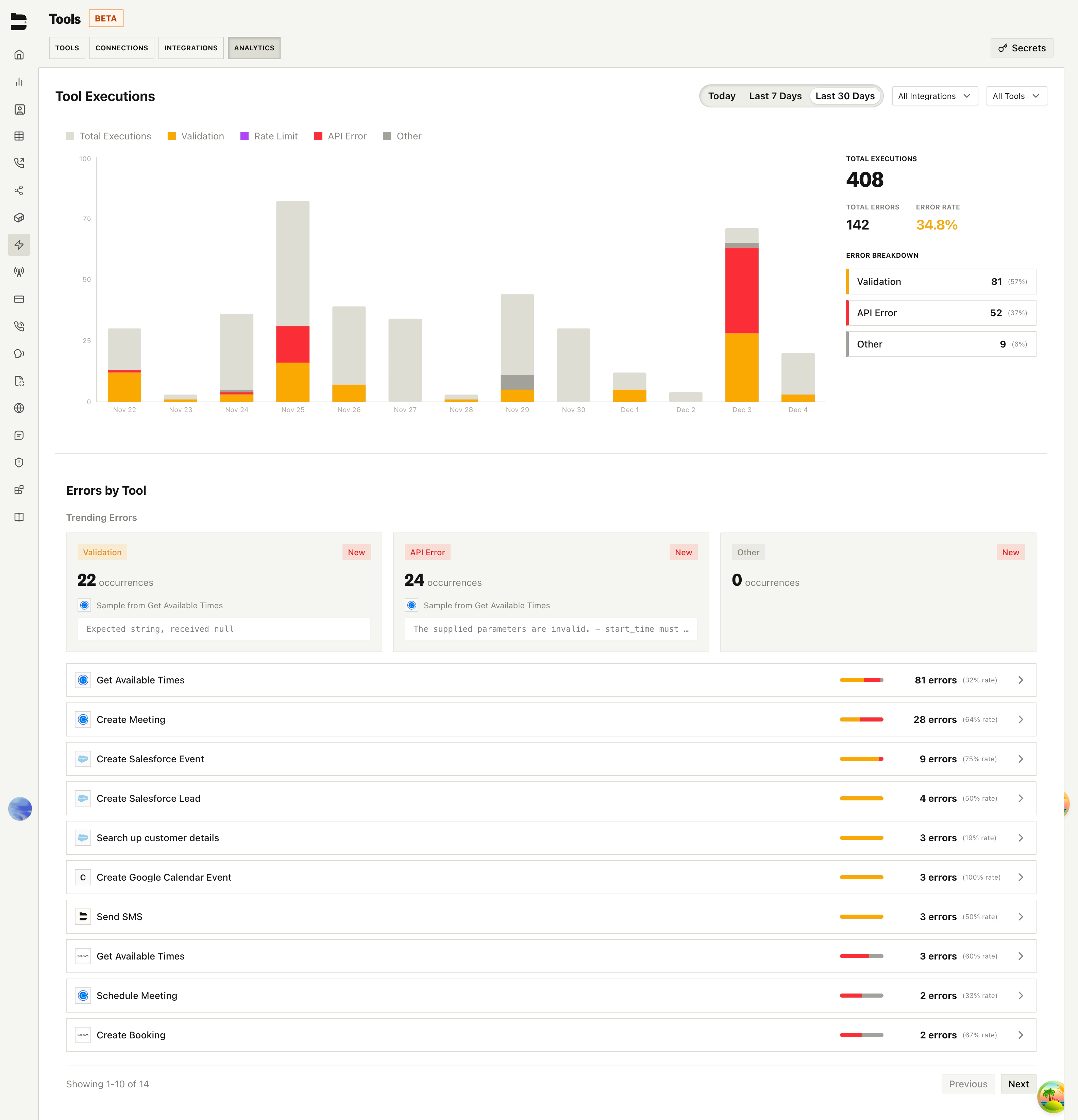
API Reference
Manage tools programmatically using the Tools API:- Create Tool: Create a new integration tool connected to Slack, a custom API, or any supported integration.
- List Tools: Retrieve a paginated list of your tools.
- Update Tool: Update any field on an existing tool. All fields are optional.
- Tool Execution Logs: Query per-execution logs across your tools.
- Execution Stats: Aggregate execution metrics grouped by integration, status, date, and more.
Docs for agents: llms.txt