> ## Documentation Index
> Fetch the complete documentation index at: https://docs.bland.ai/llms.txt
> Use this file to discover all available pages before exploring further.
# Integration Tools
> Connect to Cal.com, Salesforce, Slack, and other services.
This tutorial walks through creating a Cal.com booking tool. The same patterns apply to all built-in integrations.
For shared concepts (parameter modes, response variables, response routing), see the [Tools overview](/tutorials/tools/overview).
***
## Step 1: Connect Cal.com
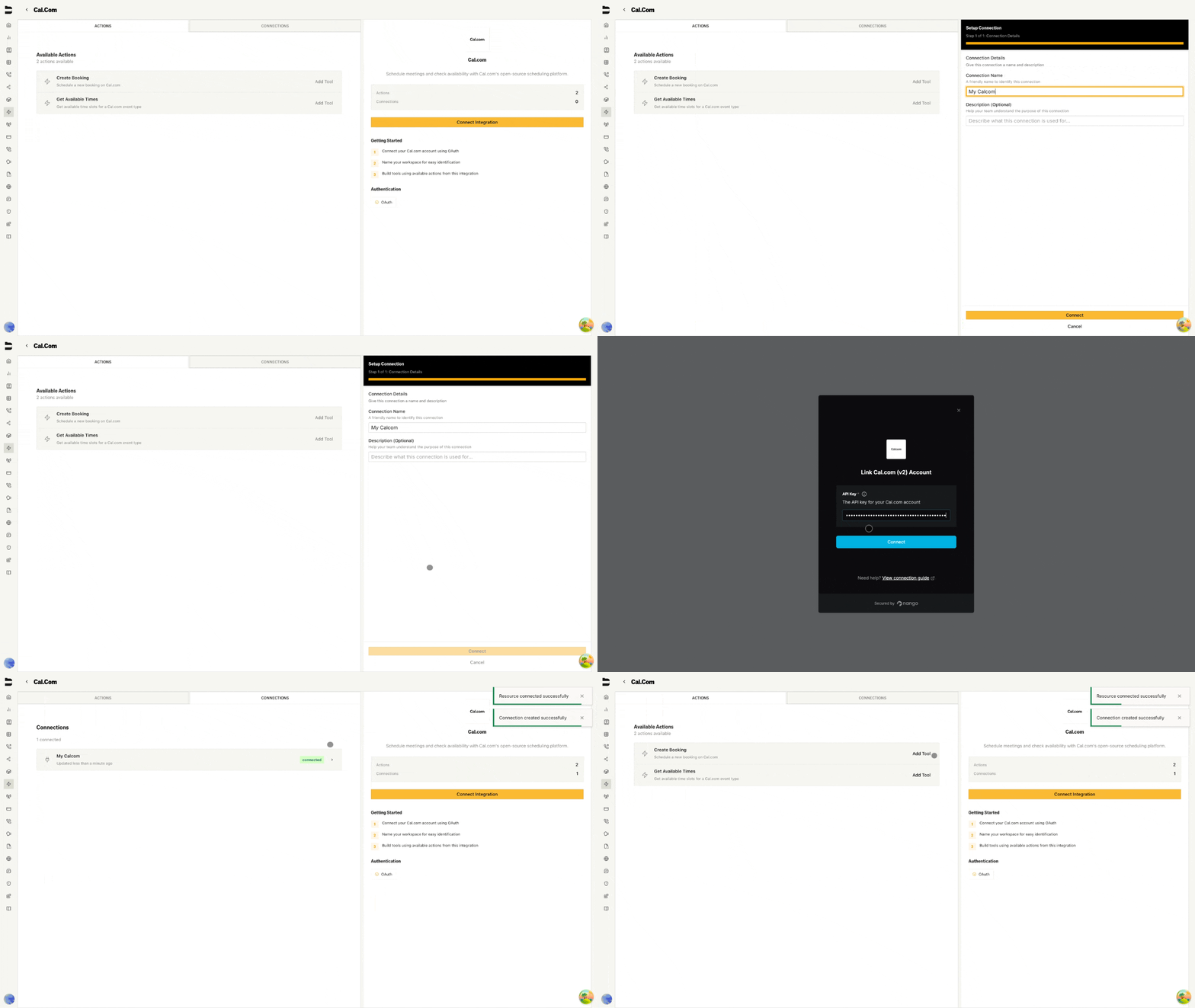
1. Go to **Integrations** tab
2. Click **Cal.com**
3. Click **Add Connection**
4. Name it (e.g., "Sales Team Calendar")
5. Click **Connect**
6. Enter your Cal.com API key in the popup
7. Click **Save**
 ***
## Step 2: Create a Booking Tool
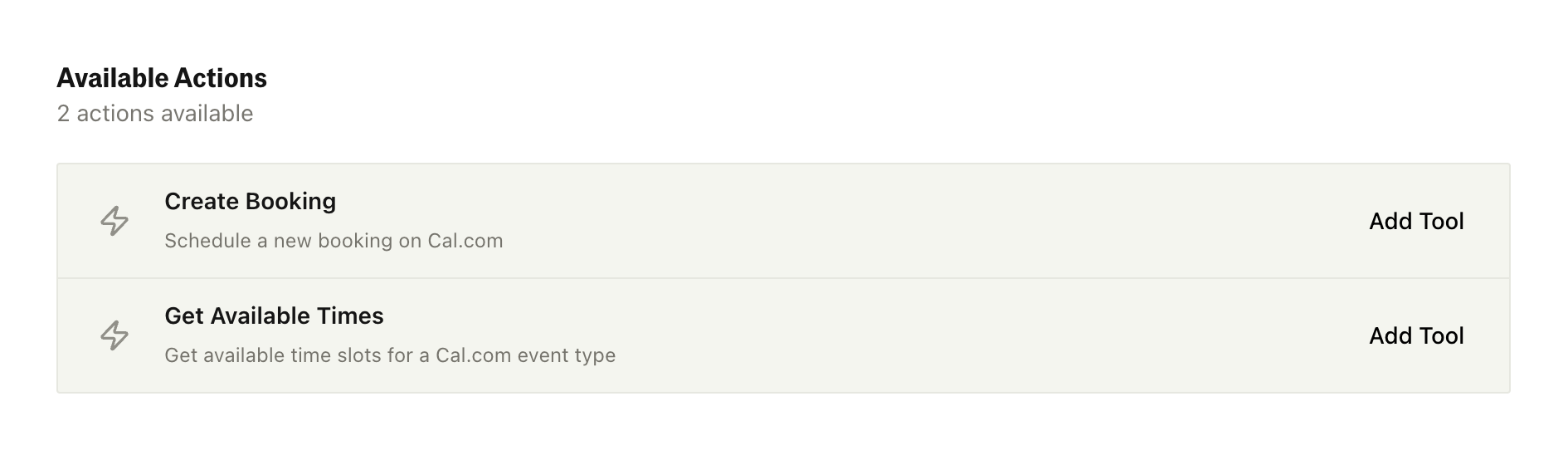
In the Actions panel, click **Create Booking** to open the Tool Builder.
***
## Step 2: Create a Booking Tool
In the Actions panel, click **Create Booking** to open the Tool Builder.
 ***
## Step 3: Configure the Tool
**Action Parameters:**
***
## Step 3: Configure the Tool
**Action Parameters:**
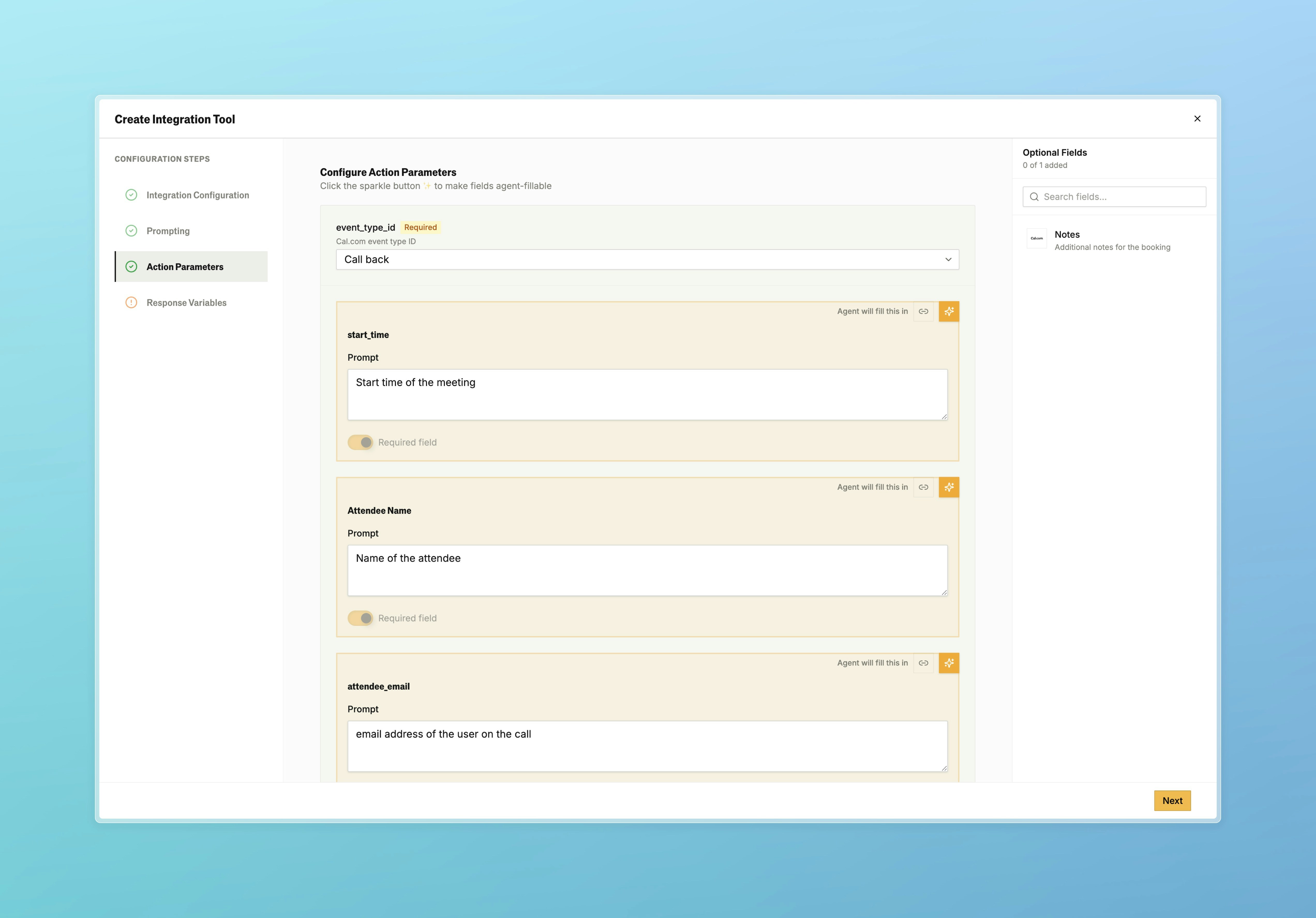 Each field uses one of three input modes (Manual, Agent, or Linked). See [Parameter Modes in Personas](/tutorials/tools/overview#parameter-modes-in-personas) for how each mode works and when to use it.
**Response Variables:**
Each field uses one of three input modes (Manual, Agent, or Linked). See [Parameter Modes in Personas](/tutorials/tools/overview#parameter-modes-in-personas) for how each mode works and when to use it.
**Response Variables:**
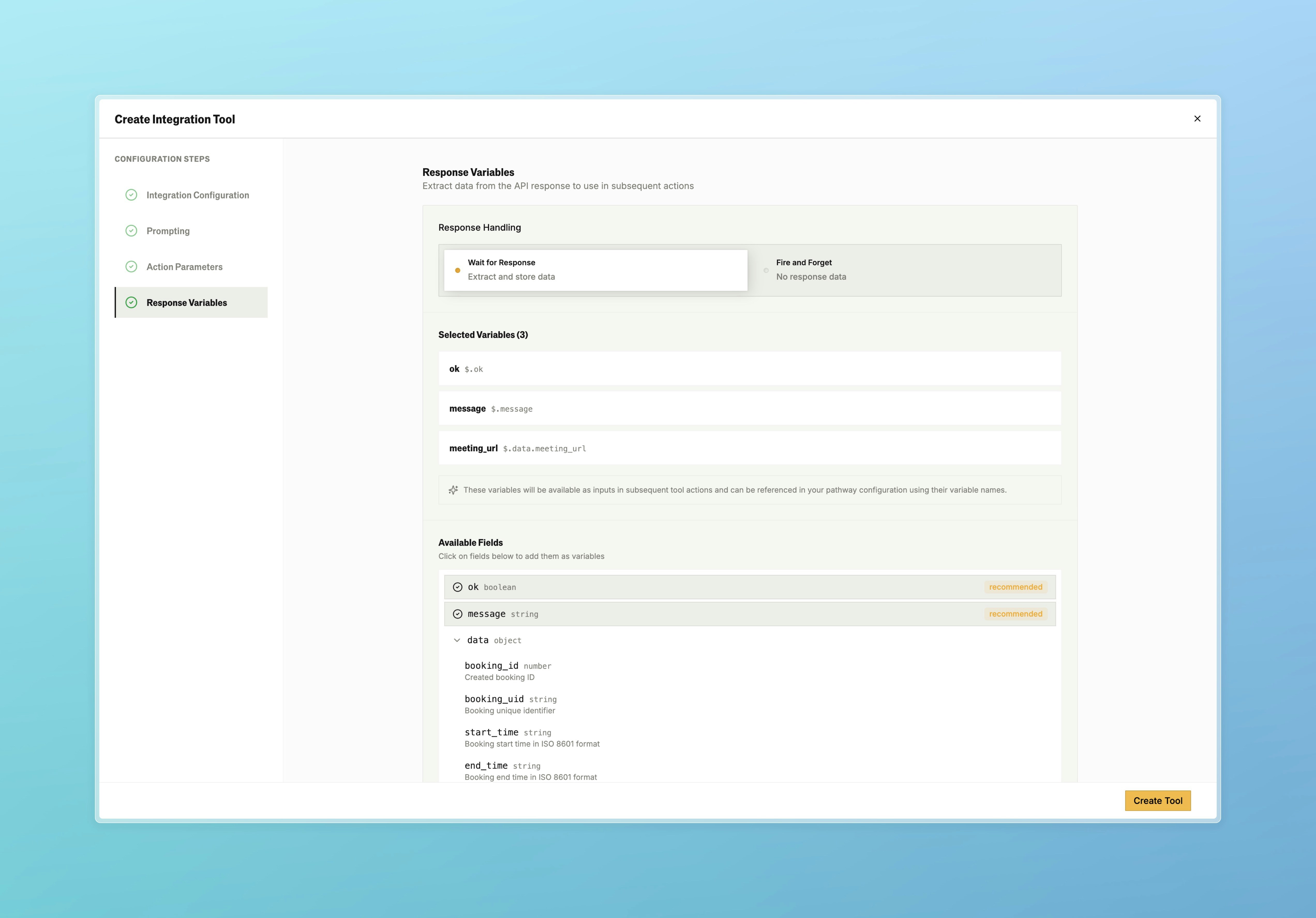 Click **Create Tool**.
***
## Cal.com Response Fields
In addition to the default `ok`, `message`, and `data` fields returned by every integration (see [Response Variables](/tutorials/tools/overview#response-variables)), the Cal.com Schedule Meeting action returns:
| Field | Description |
| ------------------- | --------------------------------- |
| `meeting_url` | The booking URL |
| `booking_id` | Unique identifier for the booking |
| `booking_uid` | UID for the booking |
| `status` | Booking status |
| `start_time` | Scheduled start time |
| `end_time` | Scheduled end time |
| `attendee_email` | The attendee's email |
| `attendee_name` | The attendee's name |
| `attendee_timezone` | The attendee's timezone |
Reference these in subsequent pathway nodes with `{{variable_name}}` syntax, or use them in [response routing](/tutorials/tools/overview#response-routing) to branch on success or failure.
***
Docs for agents: [llms.txt](/llms.txt)
Click **Create Tool**.
***
## Cal.com Response Fields
In addition to the default `ok`, `message`, and `data` fields returned by every integration (see [Response Variables](/tutorials/tools/overview#response-variables)), the Cal.com Schedule Meeting action returns:
| Field | Description |
| ------------------- | --------------------------------- |
| `meeting_url` | The booking URL |
| `booking_id` | Unique identifier for the booking |
| `booking_uid` | UID for the booking |
| `status` | Booking status |
| `start_time` | Scheduled start time |
| `end_time` | Scheduled end time |
| `attendee_email` | The attendee's email |
| `attendee_name` | The attendee's name |
| `attendee_timezone` | The attendee's timezone |
Reference these in subsequent pathway nodes with `{{variable_name}}` syntax, or use them in [response routing](/tutorials/tools/overview#response-routing) to branch on success or failure.
***
Docs for agents: [llms.txt](/llms.txt)