> ## Documentation Index
> Fetch the complete documentation index at: https://docs.bland.ai/llms.txt
> Use this file to discover all available pages before exploring further.
# iMessage
> Run a branded iMessage agent that can send and receive photos, videos, files, voice memos, tapbacks, and more.
# Introduction
Bland iMessage lets you run a branded conversational agent over iMessage. Unlike SMS, your agent can send and receive rich content like high-resolution photos, videos, documents, voice memos, tapbacks, and text effects, with end-to-end encryption and a verified business profile so customers see your company name and logo instead of a random number.
iMessage agents share the same pathways, personas, and persona memory as your voice and SMS agents, so one flow can power voice, SMS, and iMessage at once.
**Enterprise feature.** iMessage agents are available on Enterprise plans. Contact your Account Executive or [reach out to sales](https://www.bland.ai/book-a-demo) to get set up.
Your messages come from a branded contact with your company name and profile image, not a random number.
Send and receive high-resolution photos, videos, PDFs, spreadsheets, and other documents.
Tapbacks, text effects, Live Stickers, typing indicators, read receipts, and delivery status.
Send and receive voice memos so replies feel natural for longer or more personal interactions.
Conversations stay encrypted between Apple devices, like any other iMessage chat.
Reuse the pathways, personas, tools, and memory you already use for voice and SMS.
## What your agent can handle
With Bland iMessage, your agents can send and receive:
* High-resolution photos and videos
* Documents like PDFs and Excel spreadsheets
* Tapbacks, text effects, and Live Stickers
* Voice memos
* Messages that appear as blue iMessage bubbles
* Delivery status, read receipts, and typing indicators
Because everything is on iMessage, customers can send your agent an image of a receipt, a screenshot, a short voice memo, or a PDF, and your agent can read, analyze, and reply to it. The same pathways and tools you already use on voice and SMS apply.
## Voice memos
Voice memos are useful when a typed reply would be long, when a customer asks a follow-up question that benefits from a more personal tone, or when you're sending information that's easier to listen to than read.
Your agent can both send voice memos as part of its replies and ingest voice memos sent by customers, transcribing and acting on them like any other message.
## Files and reports
Agents can generate and deliver files directly inside the iMessage conversation. Common uses:
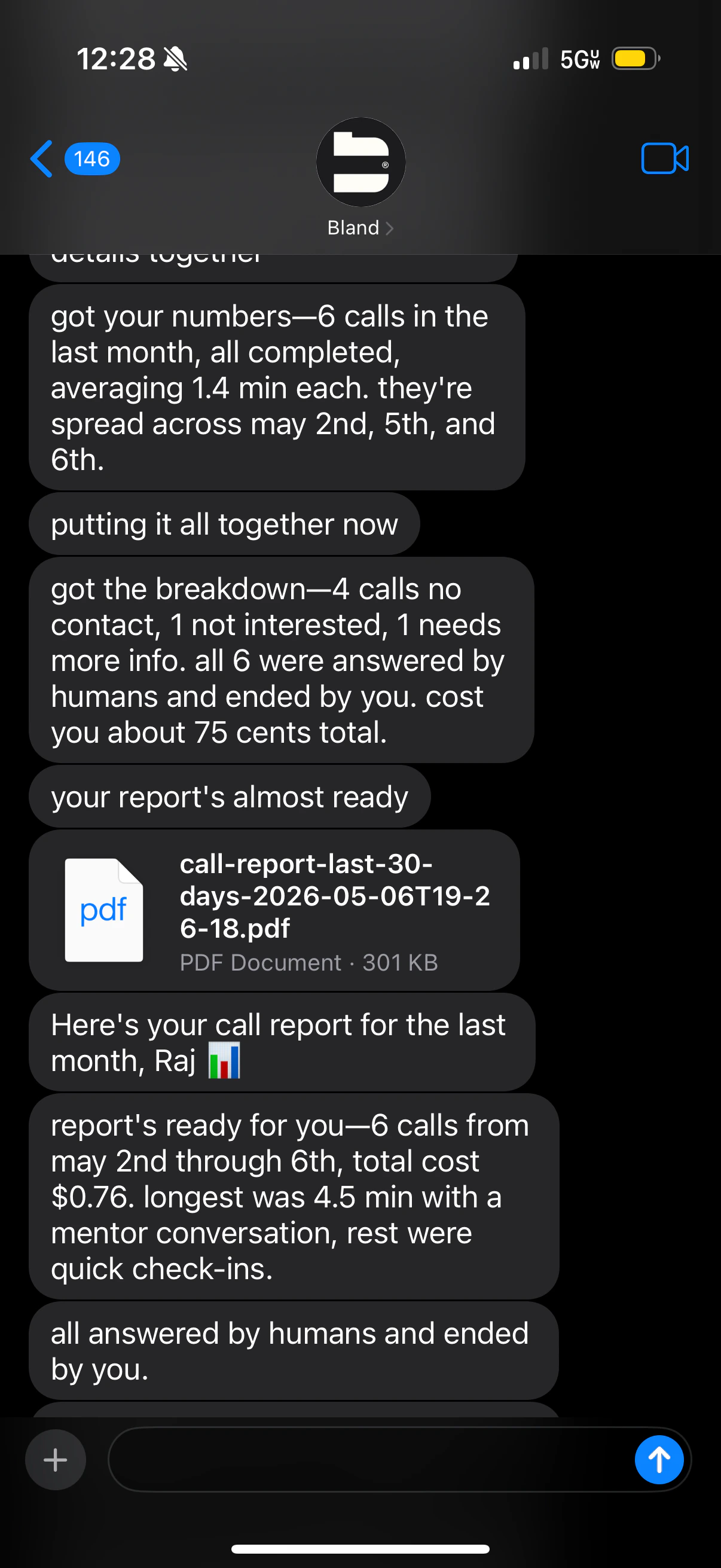
* PDF reports (call summaries, weekly digests, invoices)
* Excel spreadsheets pulled from analytics or a tool
* Images and screenshots produced by a tool call
The same applies in reverse. A customer can drop in a PDF or spreadsheet, and your agent can read it as part of the conversation.
## Norm over iMessage
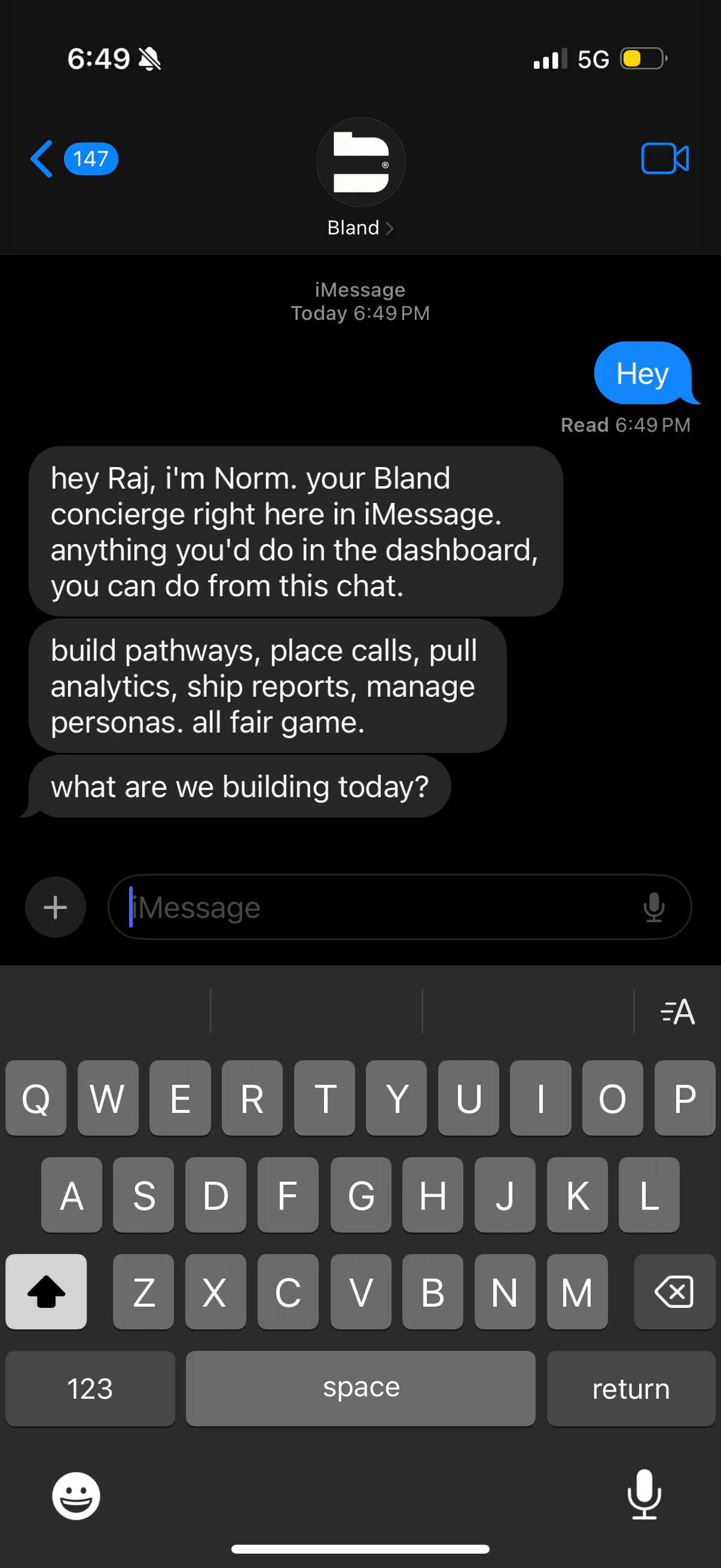
To show what's possible, we extended [Norm](https://app.bland.ai) to work over iMessage. Norm is the Bland agent for managing your account, and over iMessage it can:
* **Build and update agents.** Ask Norm to create a phone agent, add a node, or change a prompt.
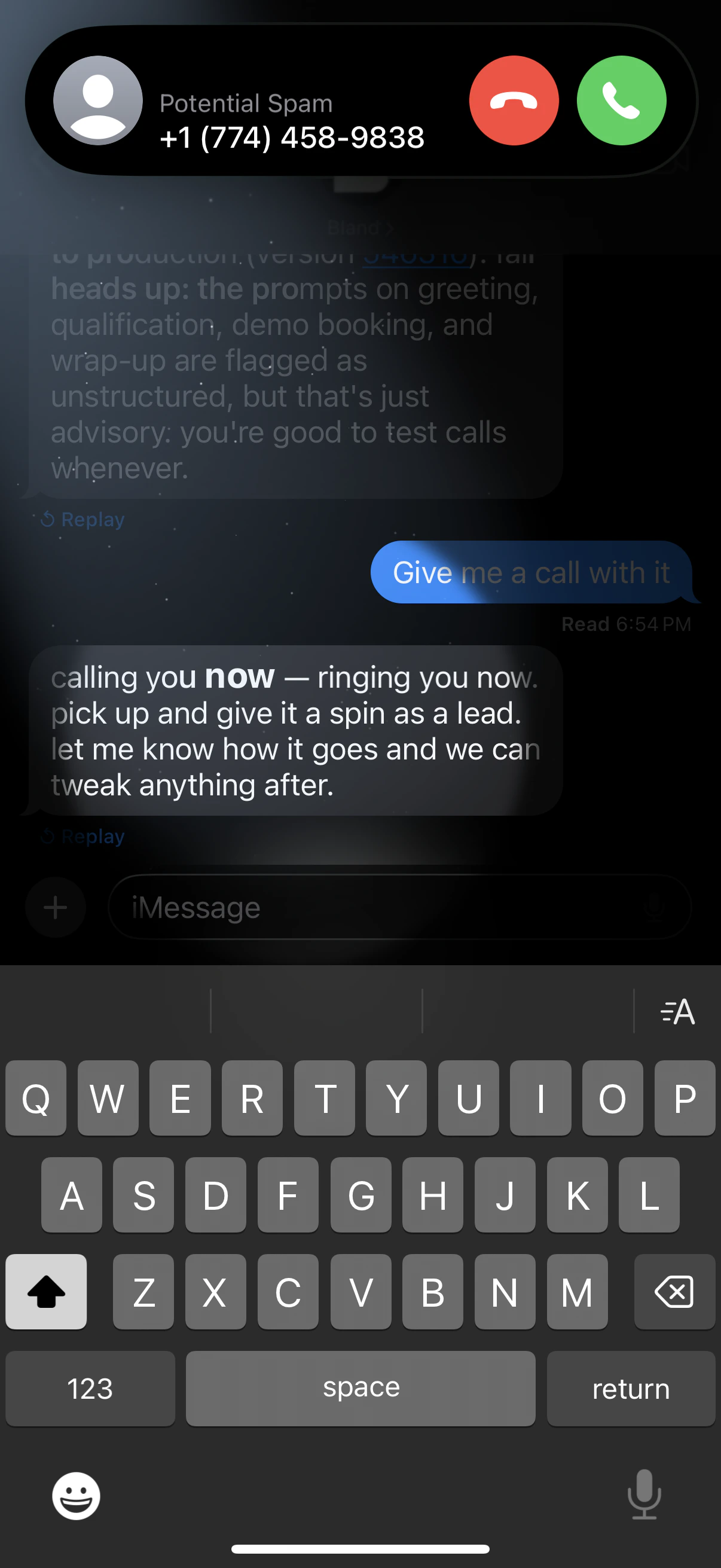
* **Test agents.** Run simulations on a change, place a test call, and push updates to production.
* **Troubleshoot pathways.** Have Norm review call logs and pathways for errors and flag what needs attention. For example, Norm can detect when authentication is consistently failing and notify you.
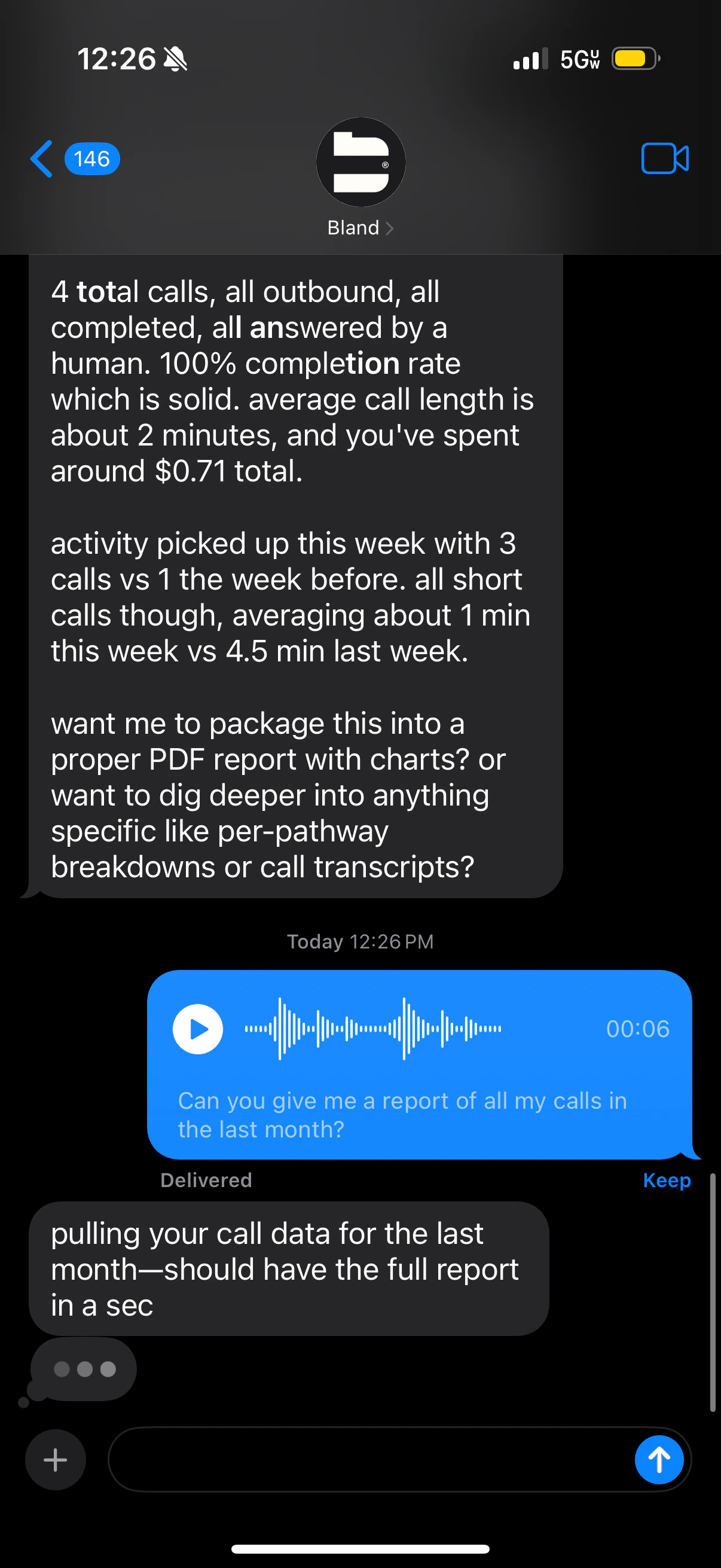
* **Send reports.** Generate PDF and Excel reports and receive them directly in iMessage.
* **Query analytics.** Ask in plain English, like "How many calls did I get in the last 10 minutes?"
* **Schedule reminders.** Set up recurring digests, like a morning summary of call volume, failed calls, or agent performance.
You can try it by texting **+1 (321) 424-0172**. If you don't have a Bland account, Norm will walk you through onboarding. If you already have one, you can start making changes right away.
## Setting up an iMessage agent
iMessage agents use the same configuration model as the rest of the messaging stack. Once your number is provisioned for iMessage, you can attach a [pathway](/tutorials/pathways) or a [persona](/tutorials/personas) the same way you would for a voice number.
To enable iMessage on your account:
1. Contact your Account Executive or FDE to provision an iMessage-capable number for your organization.
2. In the dashboard, attach a pathway or persona to that number.
3. Send a test message from another device to confirm the branded contact and your agent both render correctly.
If you already have a voice or SMS pathway, you can reuse it for iMessage. Pathway responses are formatted for the channel automatically, so backchanneling and pause hints from voice prompts are stripped from messages.
## API
iMessage shares the [Messaging API](/api-v1/get/sms-numbers) with SMS, RCS, and WhatsApp. The same endpoints handle sending, receiving, configuration, and analytics, with iMessage selected by passing `channel: "imessage"` (or automatically when the number is provisioned for iMessage).
Send a message or start a conversation. Pass `channel: "imessage"` to send over iMessage.
Configure pathway, persona, prompt, timeouts, and analytics for an iMessage number.
List your numbers with `?channel=imessage` to see iMessage configuration.
Inspect, patch, or delete iMessage conversations with the same conversation endpoints used for SMS.
## Outcomes, citations, and summaries
iMessage conversations support the same post-conversation analytics as voice and SMS. When a conversation ends, the platform can run [outcomes](/tutorials/outcomes), extract [citations](/enterprise-features/citations), and generate a summary using a custom prompt.
These can be configured per number on the iMessage config, or passed per request on `/sms/send`. Webhook payloads include a `channel` field set to `"imessage"` so you can route them to the right handler.
## Related
* [Overview](/tutorials/messaging/overview) (channel-agnostic concepts and API)
* [SMS](/tutorials/messaging/sms) (A2P registration and bring-your-own-Twilio)
* [RCS](/tutorials/messaging/rcs) (verified business profile and rich messaging)
* [Personas](/tutorials/personas) (one agent across voice, SMS, and iMessage)
* [Memory](/tutorials/memories) (cross-channel contact recognition)
* [Outcomes](/tutorials/outcomes) (classify what happened in each conversation)
* [Citations](/enterprise-features/citations) (extract structured data from conversation transcripts)
* [Post-Call Webhooks](/tutorials/post-call-webhooks) (webhook payloads for voice and messaging)
***
Docs for agents: [llms.txt](/llms.txt)