> ## Documentation Index
> Fetch the complete documentation index at: https://docs.bland.ai/llms.txt
> Use this file to discover all available pages before exploring further.
# Blocked Numbers
> Understand how to manage and configure blocked phone numbers directly within the Bland dashboard.
## Overview
The **Blocked Numbers** feature allows you to prevent specific phone numbers from reaching your Bland inbound lines. You can manage these blocks through the main [**Phone Numbers** dashboard](https://app.bland.ai/dashboard/phone-numbers) in two ways:
* **Globally**: Block a number across all your inbound numbers
* **Individually**: Block a number for a specific inbound number only
***
## Global Number Block Rules
From the **Phone Numbers** page in the dashboard, you'll find the **Global Blocked Numbers** button in the top right corner.
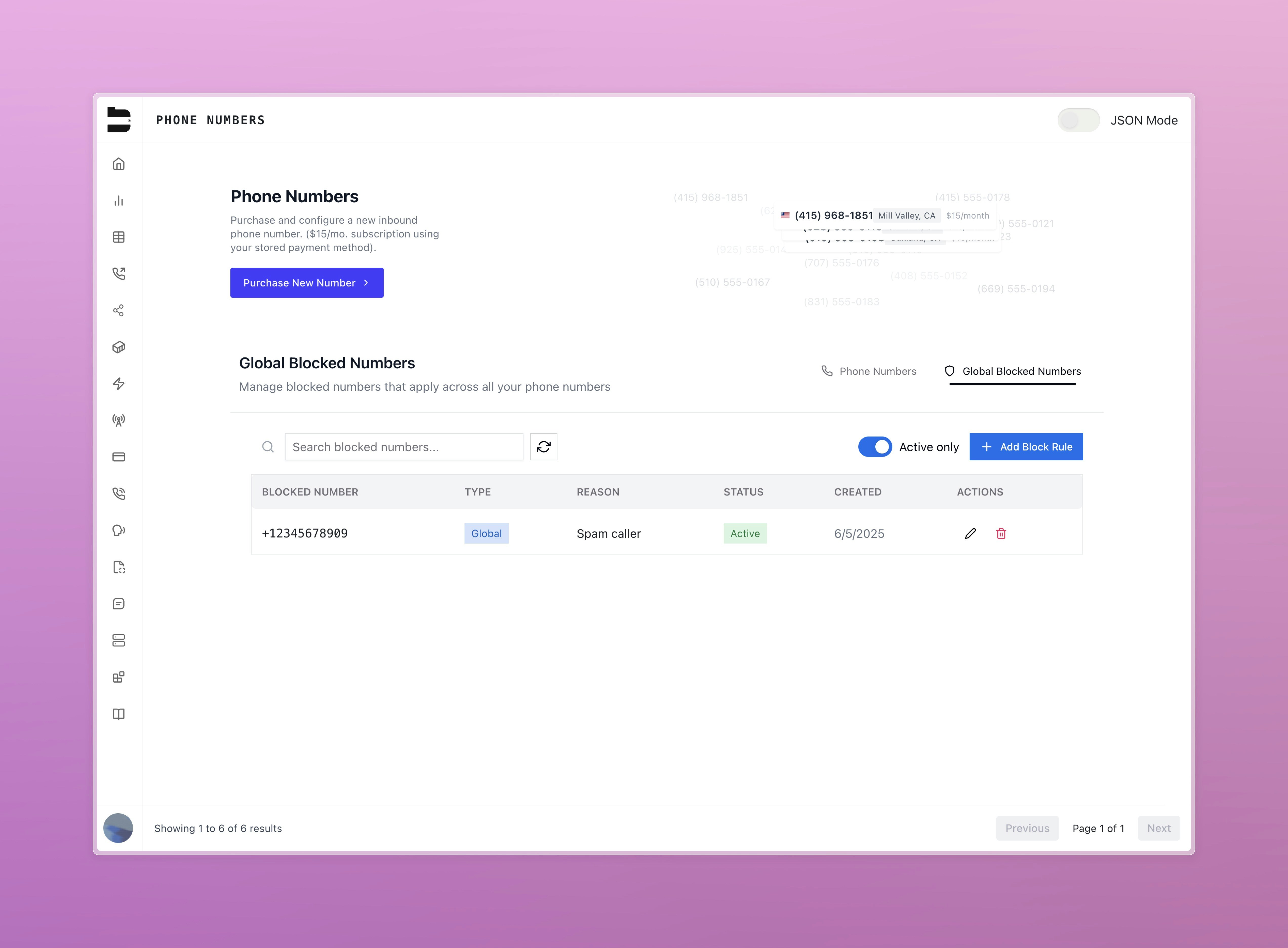 Clicking this button opens a list of phone numbers that are blocked across all your inbound lines. Any phone number added here will be rejected automatically, regardless of which inbound number they attempt to call.
***
## Individual Number Block Rules
You can also create block rules specific to a single inbound number.
1. Navigate to the **Phone Numbers** page
2. Click **Setup Call** on the desired number under the configuration column
3. Navigate to the **Blocked Numbers** tab at the top
Clicking this button opens a list of phone numbers that are blocked across all your inbound lines. Any phone number added here will be rejected automatically, regardless of which inbound number they attempt to call.
***
## Individual Number Block Rules
You can also create block rules specific to a single inbound number.
1. Navigate to the **Phone Numbers** page
2. Click **Setup Call** on the desired number under the configuration column
3. Navigate to the **Blocked Numbers** tab at the top
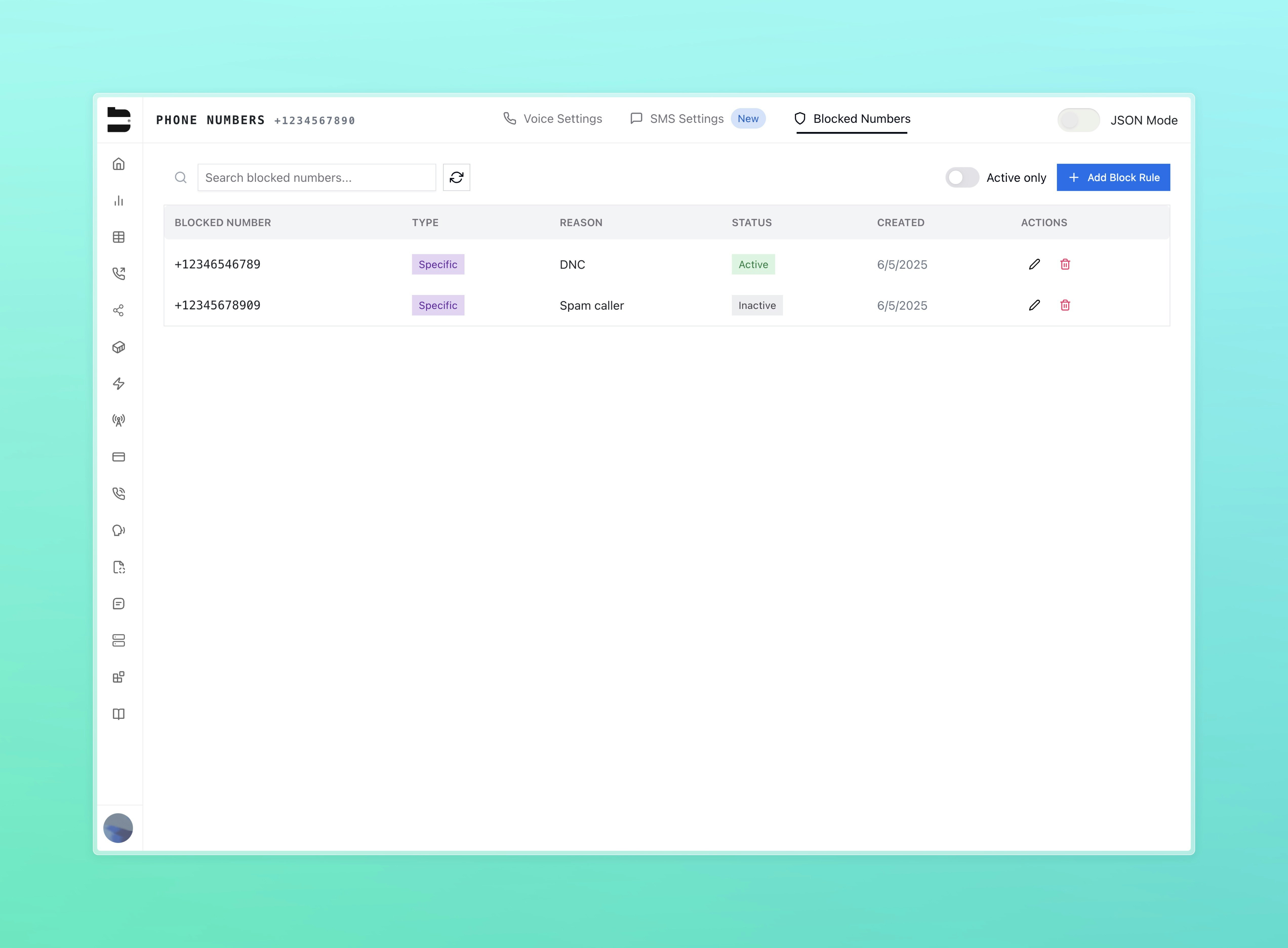 Here, you can configure block rules that apply **only** to the selected number.
***
## Block Rule Fields
Each block rule in the table includes the following columns:
* **Blocked Number**: The E.164 formatted phone number that is blocked
* **Type**: `global` or `specific`, depending on whether it applies to all numbers or just one
* **Reason**: Optional text indicating why this number was blocked
* **Status**: Indicates if the rule is currently active; can be toggled without deleting
* **Created**: Date the rule was originally added
* **Actions**: Options to edit or delete the rule
***
## Adding Block Rules
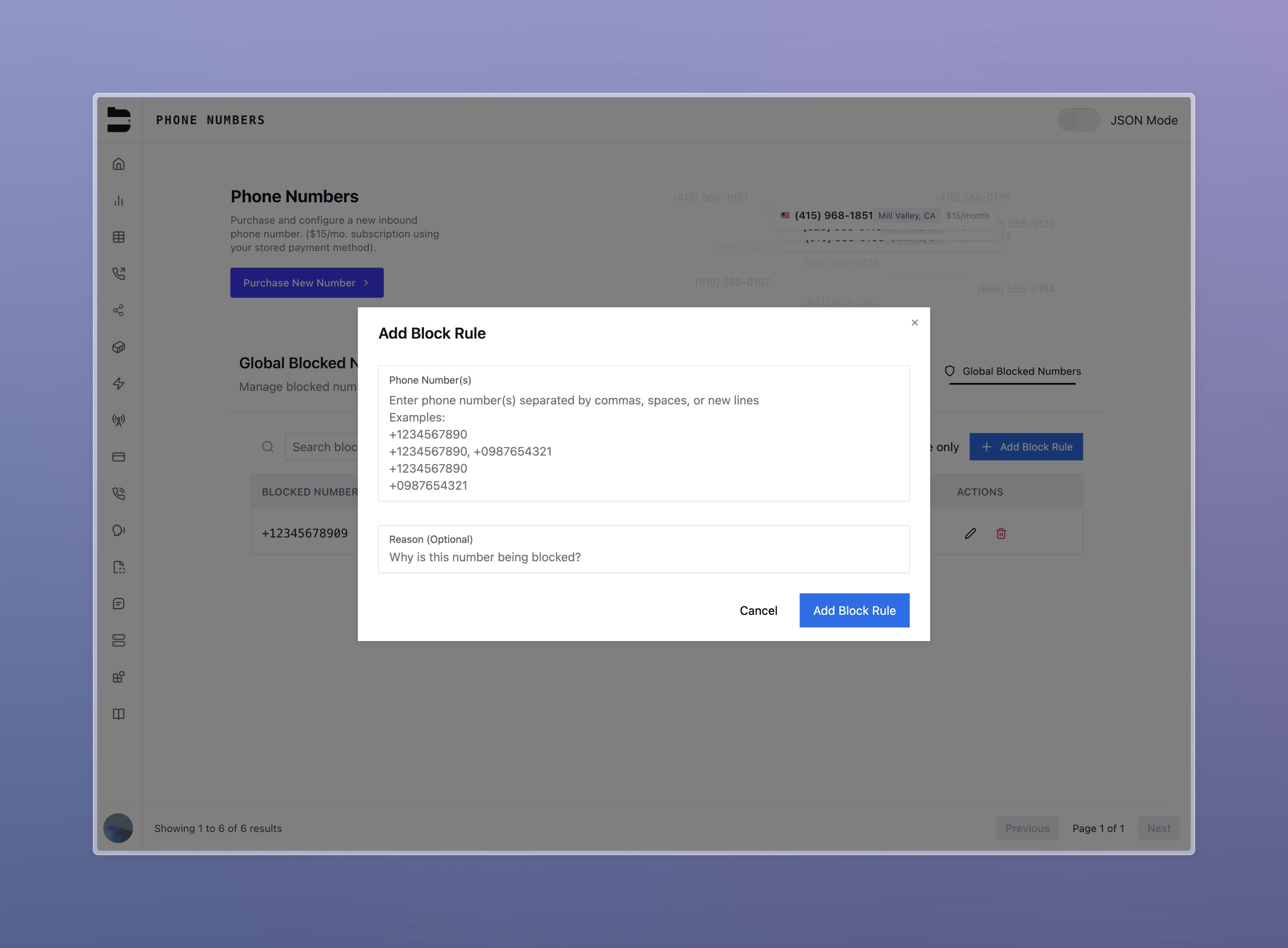
When adding new block rules, you can paste or enter numbers in bulk using:
* Comma-separated values (CSV)
* Space-separated values
* New line-separated values
You may also optionally include a reason for blocking the number(s).
Here, you can configure block rules that apply **only** to the selected number.
***
## Block Rule Fields
Each block rule in the table includes the following columns:
* **Blocked Number**: The E.164 formatted phone number that is blocked
* **Type**: `global` or `specific`, depending on whether it applies to all numbers or just one
* **Reason**: Optional text indicating why this number was blocked
* **Status**: Indicates if the rule is currently active; can be toggled without deleting
* **Created**: Date the rule was originally added
* **Actions**: Options to edit or delete the rule
***
## Adding Block Rules
When adding new block rules, you can paste or enter numbers in bulk using:
* Comma-separated values (CSV)
* Space-separated values
* New line-separated values
You may also optionally include a reason for blocking the number(s).
 ***
## Editing Block Rules
Block rules can be edited after creation to:
* Update the **reason**
* Toggle **status** active or inactive
> Note: Once a block rule is created, the phone number itself becomes immutable. You cannot modify or replace it — only the reason and status can be changed.
***
## API Access
You can programmatically manage blocked numbers using our API.
[View the Blocked Numbers API Documentation](/api-v1/post/blocked-numbers)
***
Docs for agents: [llms.txt](/llms.txt)
***
## Editing Block Rules
Block rules can be edited after creation to:
* Update the **reason**
* Toggle **status** active or inactive
> Note: Once a block rule is created, the phone number itself becomes immutable. You cannot modify or replace it — only the reason and status can be changed.
***
## API Access
You can programmatically manage blocked numbers using our API.
[View the Blocked Numbers API Documentation](/api-v1/post/blocked-numbers)
***
Docs for agents: [llms.txt](/llms.txt)