> ## Documentation Index
> Fetch the complete documentation index at: https://docs.bland.ai/llms.txt
> Use this file to discover all available pages before exploring further.
# Starter guide
> Learn how to use Bland's API in under five minutes
## Creating a developer account
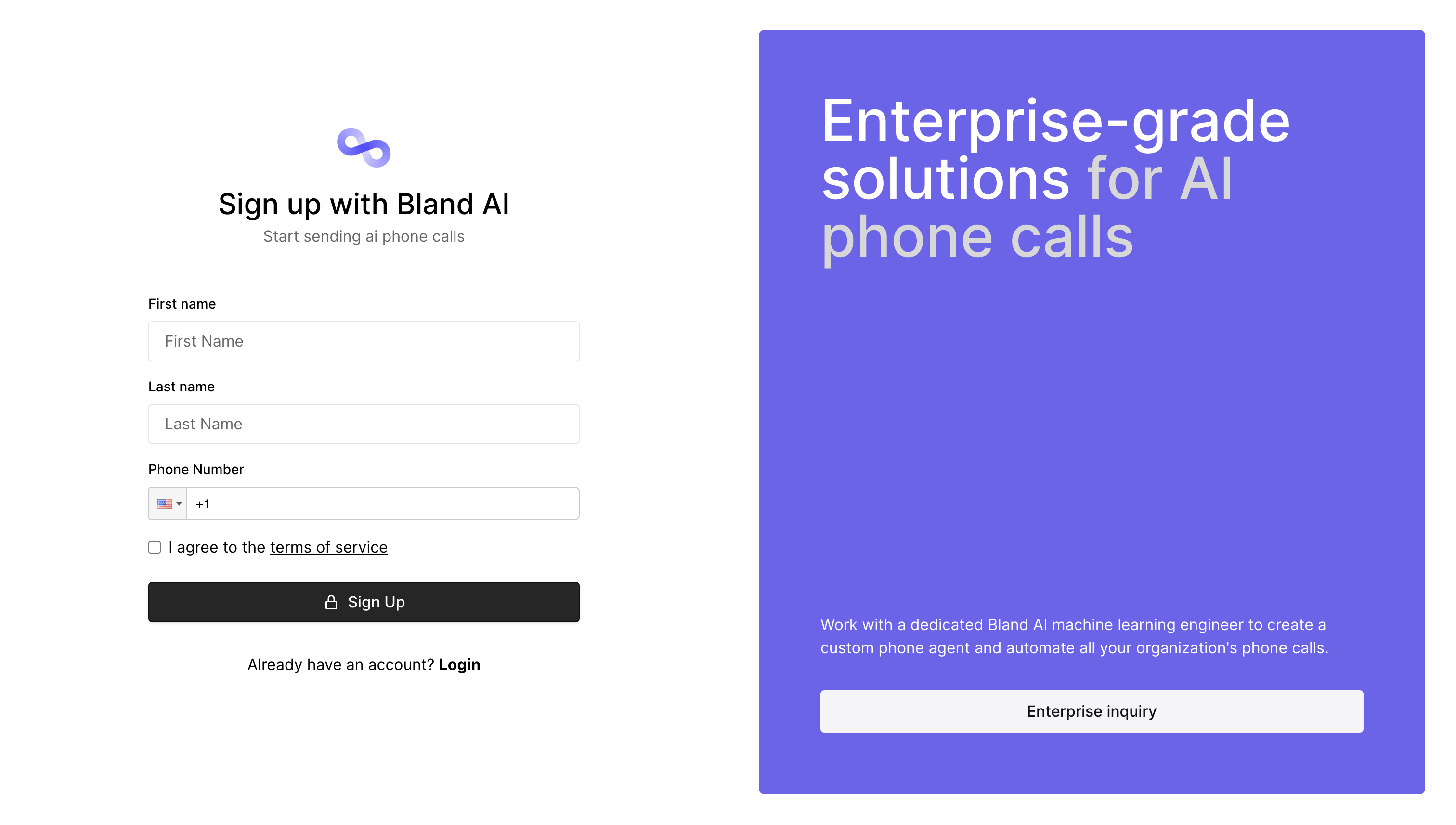 To get started, sign up on the developer portal.
Enter your phone number and verification code. Finally, once your developer portal loads, go to the `Send phone call` page.
## Sending your first phone call
To get started, sign up on the developer portal.
Enter your phone number and verification code. Finally, once your developer portal loads, go to the `Send phone call` page.
## Sending your first phone call
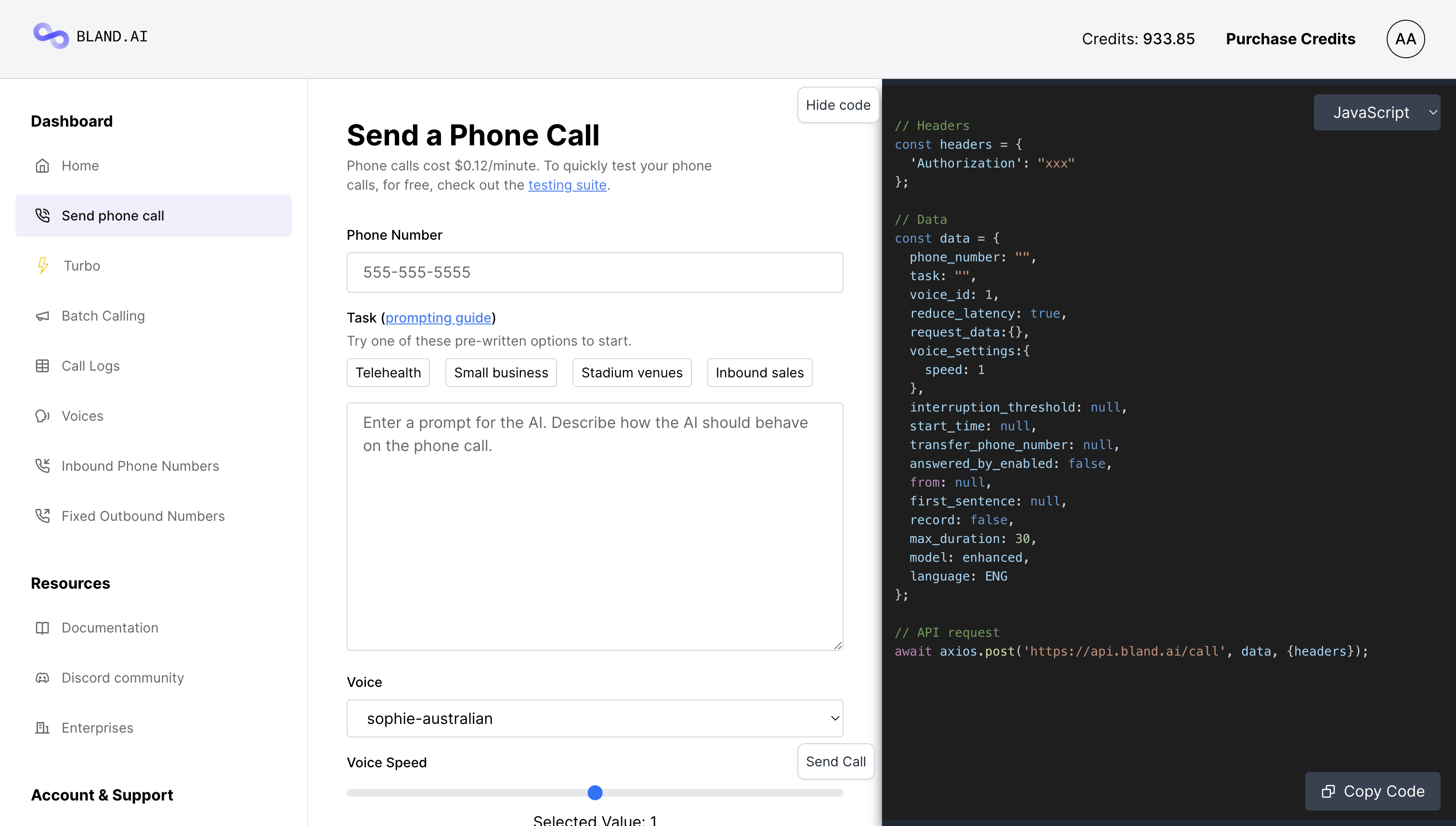 Although Bland is an API-first platform, the send phone call page provides a simple interface for quickly testing calls. On the left side you can adjust the call options and on the right hand side you can see how the code updates.
Once you're satisfied with a call, copy the code on the right side (in Javascript, Python, or cURL) and add it to your application.
In the `Phone Number` field, enter your own phone number.
For the task box either select one of the example prompts or write your own. For more instrucionts about prompting your AI phone agent, read this blog post.
Scroll to the bottom of the page, and press the `Send call` button. Note, calls are charged at \$0.12/minute, billed to the exact second.
To send a phone call programatically, read the API reference.
## Testing your phone agent
Although Bland is an API-first platform, the send phone call page provides a simple interface for quickly testing calls. On the left side you can adjust the call options and on the right hand side you can see how the code updates.
Once you're satisfied with a call, copy the code on the right side (in Javascript, Python, or cURL) and add it to your application.
In the `Phone Number` field, enter your own phone number.
For the task box either select one of the example prompts or write your own. For more instrucionts about prompting your AI phone agent, read this blog post.
Scroll to the bottom of the page, and press the `Send call` button. Note, calls are charged at \$0.12/minute, billed to the exact second.
To send a phone call programatically, read the API reference.
## Testing your phone agent
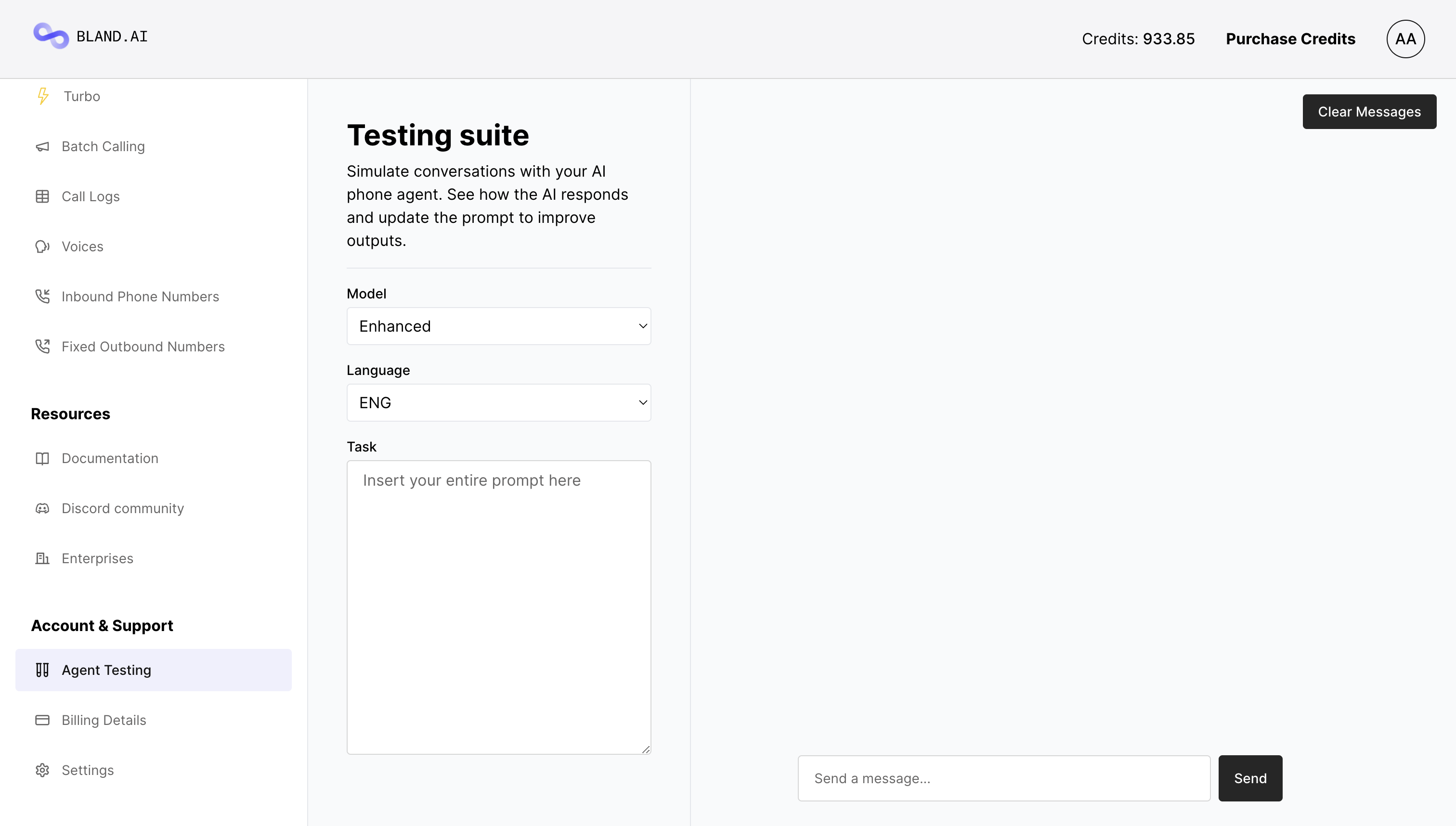 Once you've sent your first phone call, the next step is to test and improve the outputs from your phone agent.
One way to test your agent is to send yourself test calls. A faster way, however, is to use the Bland AI testing suite.
Select the model and language and insert your current prompt into the task box.
Start messaging your phone agent. Act like you're the person receiving the call, and purposefully ask edge-case questions to throw the phone agent off.
Based on the responses you receive, update the instructions in the prompt.
## Next steps
You now know how to send and test phone calls, but you've only scratched the surface of Bland's capabilties.
Areas for further exploration:
Read the API reference.
Creating custom tools for interacting with external APIs, live, during phone calls.
Learn how to prompt the exact behavior you want from your phone agent.
See what people are building on Bland and get support from other users.
Once you've sent your first phone call, the next step is to test and improve the outputs from your phone agent.
One way to test your agent is to send yourself test calls. A faster way, however, is to use the Bland AI testing suite.
Select the model and language and insert your current prompt into the task box.
Start messaging your phone agent. Act like you're the person receiving the call, and purposefully ask edge-case questions to throw the phone agent off.
Based on the responses you receive, update the instructions in the prompt.
## Next steps
You now know how to send and test phone calls, but you've only scratched the surface of Bland's capabilties.
Areas for further exploration:
Read the API reference.
Creating custom tools for interacting with external APIs, live, during phone calls.
Learn how to prompt the exact behavior you want from your phone agent.
See what people are building on Bland and get support from other users.